---
updatedAt: 2026-07-18T16:27:26.000Z
agentTools:
projectIndex: https://docs.eosvolt.com/llms.txt
---
# Creating a Public Location
This guide explains how to create a **public location** in the EOSVOLT backend and configure its pricing, address, and visibility settings.
## Navigate to “Charge Points”
1. Go to the **Charge Points** tab in your EOSVOLT dashboard.
2. Click the **“Add Location”** button to begin setup.
***
## Name, Type, and Pricing Strategy
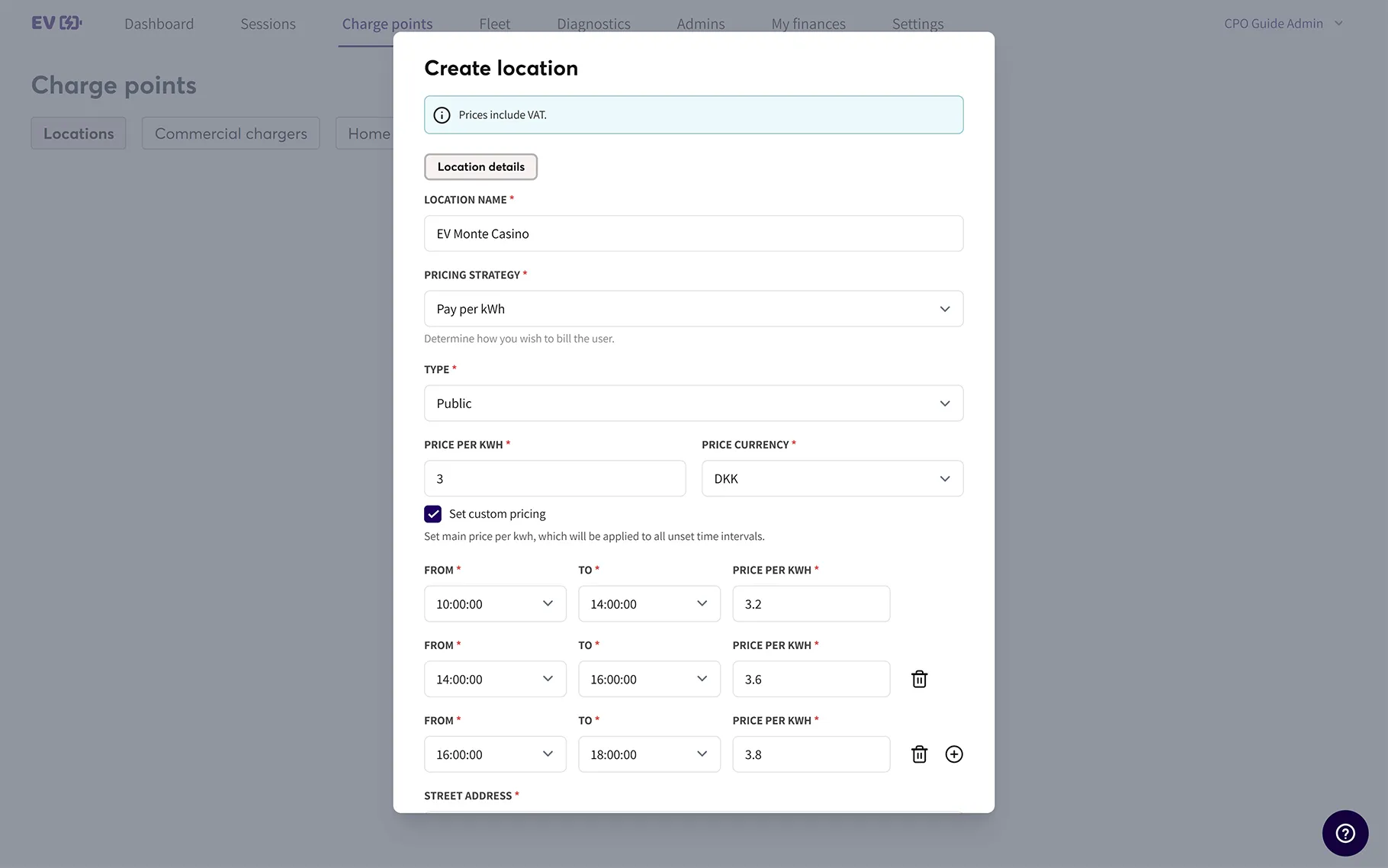
### Location Name
The name you enter here will be displayed to users in the EOSVOLT mobile app.
### Type
Select **“Public”** as the location type.
### This determines that the location is visible to all users in the app and available for public charging.
### Pricing Strategy
You can set a price **per kWh** or **per minute** charged.
### Price
Specify the **price (included VAT)** for this location.
### If you’re using **custom pricing**, this default price will apply to all times **not specified** in your custom pricing setup.
### Set Custom Pricing
CPOs can enable different pricing schemes for different times of the day.
* Configure time-based price blocks (e.g., 00:00–06:00, 06:00–12:00, 12:00–18:00, 18:00–24:00).
* Each block can have its own rate.
### **Note**
This pricing scheme applies to **all days of the week**.
### If you’re using **custom pricing**, this default price will apply to all times **not specified** in your custom pricing setup.
### Example
| Time Window | Price |
| ----------- | ------- |
| 00:00–06:00 | USD 0.8 |
| 06:00–18:00 | USD 1.2 |
| 18:00–24:00 | USD 0.7 |
## Idle fee
CPOs can enable a **idle fee** to discourage vehicles from occupying a connector after charging has ended.
### Parameters
* **Idle fee** — The amount charged **per interval** once the grace period elapses.
* **Idle fee Interval** — The **time interval** that serves as (1) the grace period before the first fee and (2) the cadence for repeated fees. Selectable values: **5 / 15 / 30 / 60 minutes**.
### **Grace period**
The first **idle fee Interval** acts as a grace period. No fee is charged until it fully elapses.
### How it works
1. **Session ends → timer starts.**
2. **First interval reached →** charge 1× Idle fee and reset the timer.
3. **Each subsequent interval →** charge another 1× idle fee and reset the timer.
4. **Stops when the user unplugs** the vehicle (connector is freed).
### Example
* Idle fee: **USD 1**
* Idle fee Interval: **15 minutes**
* At **+15 min** → charge **USD 1**
* At **+30 min** → charge **USD 1**
* At **+45 min** → charge **USD 1**, and so on until unplugged.
### Idle detection (status-based)
The system monitors connector status for idled sessions.
If the connector remains in `SuspendedEV` for **one full idle fee Interval**, the system will:
* **Stop the transaction** (if still open), and
* **Start the idle-fee timer** as described above.
### **What is **`SuspendedEV`**?**
The EV has paused energy transfer (e.g., battery full) while still plugged in. The connector is occupied but not delivering power.
***
## Address and Timezone
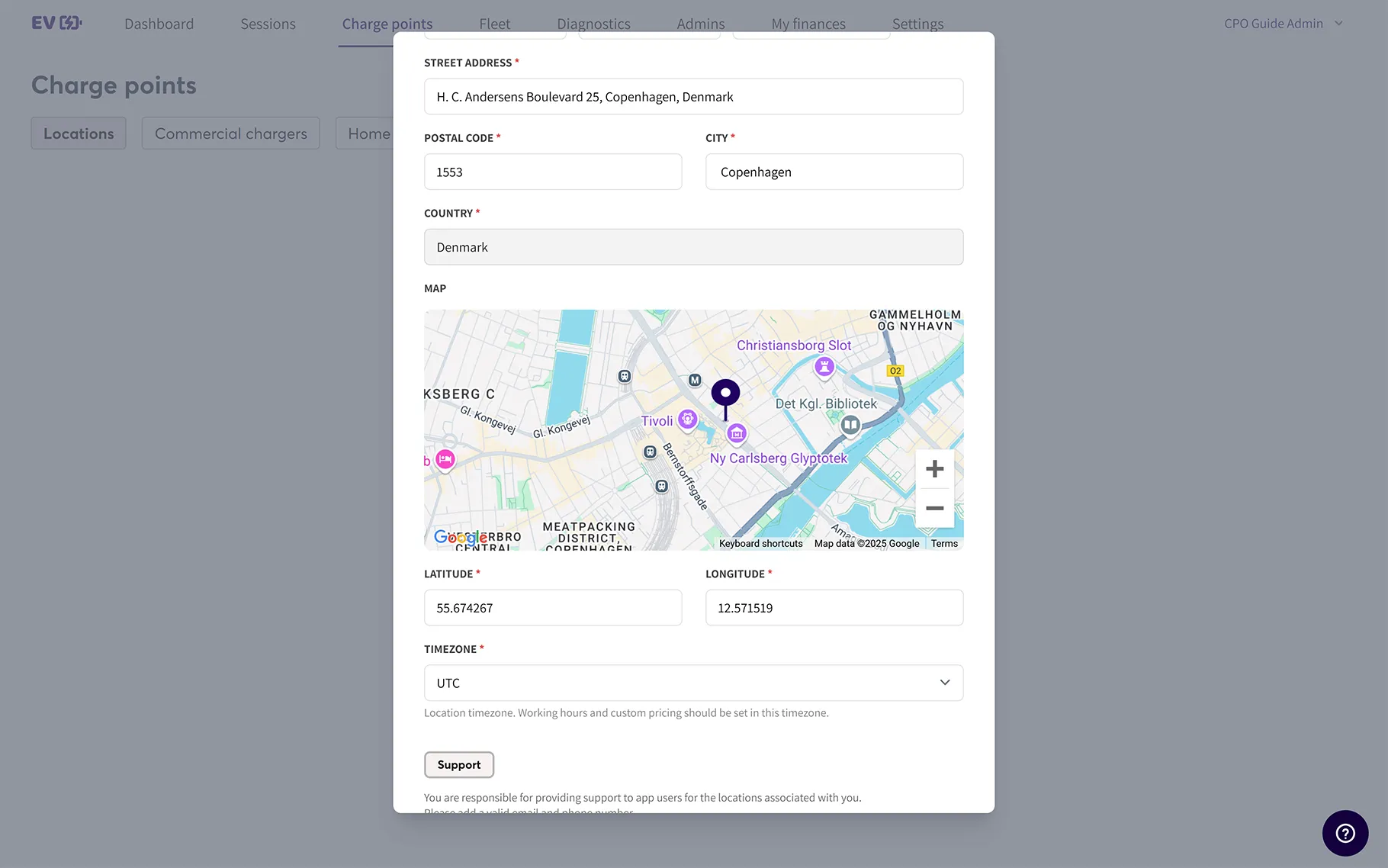
### Address
Enter the physical address of your charging location.
This address will be shown in the mobile app.
### Pin
The location pin will be automatically placed based on the entered address.
If it’s not accurate, you can **drag and drop the pin** to fine-tune the exact location.
### Timezone
Select the **timezone** for this location.
This ensures bookings, pricing, and opening hours display correctly for users.
***
## Support and Opening Hours
### Support
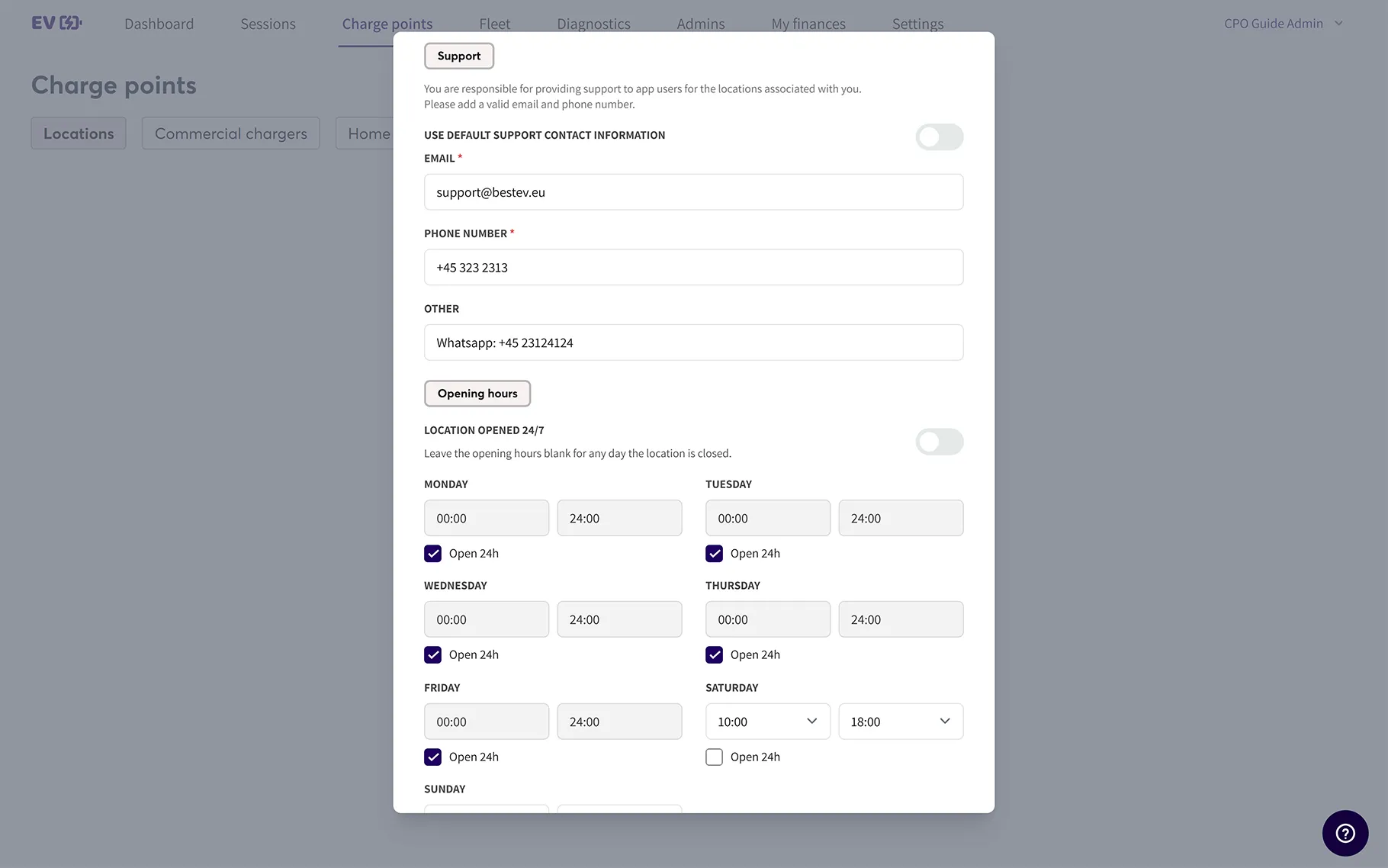
You can assign **specific support contact details** for this location or use your **default CPO support information**.
### The support details entered during the first location setup are automatically saved as the **default**.
You can adjust the default support info later under the **Settings** tab.
### Opening Hours
Define the **opening hours** for the location — by day of the week and time range.
***
## Location Image and Visibility
### Location Image
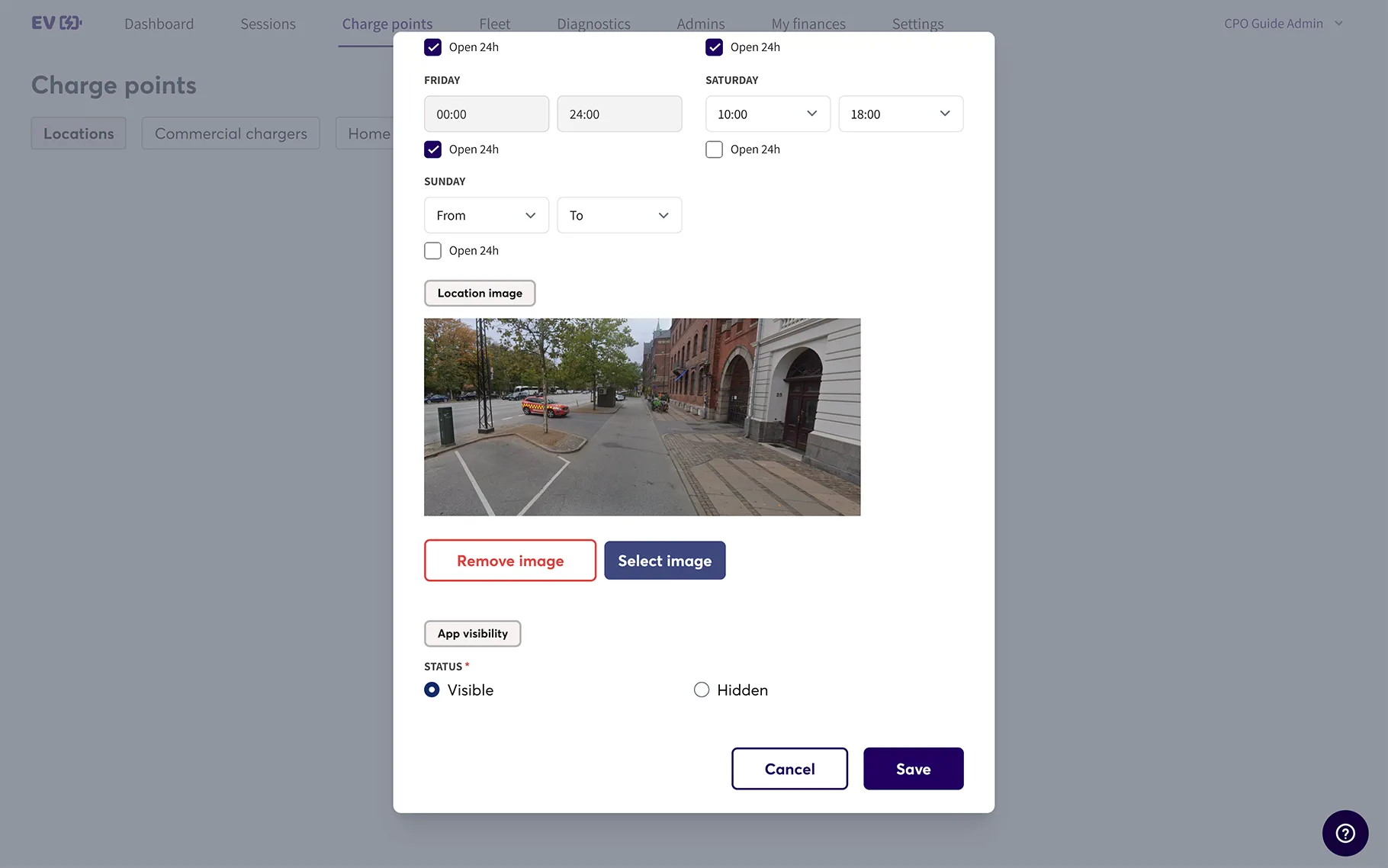
Upload an image of the location to help users recognize where chargers are placed — e.g., inside a large parking area.
### App Visibility
You can choose to make the location:
* **Visible** in the app (public)
* **Hidden** (for private or restricted access locations, such as residential complexes)
### The location becomes visible on the map **only after at least one charger** is added to it.
###
**Hidden** affects **visibility**, not **access**. The location won’t appear in search, but users can still charge.