
Customers
Find a driver's account, add a physical charge key for them, and read their charging history, wallet and cars from the Customers section.
Customers lists every driver registered in your branded app, with their charge keys, wallet and last charge. It is where support work starts: find the driver, then open the part of their account the question is about.
At a glance
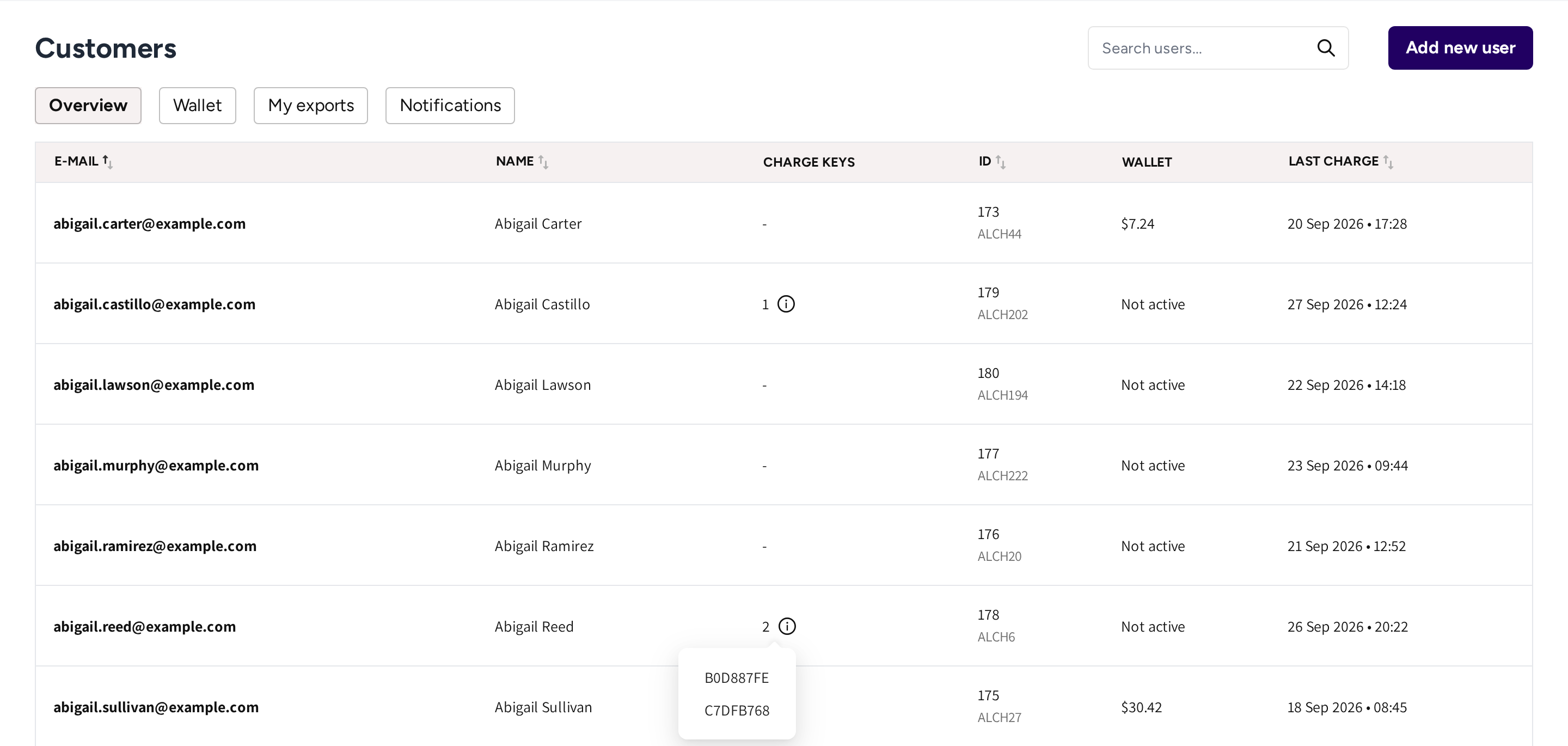
- Overview, Wallet, My exports and Notifications: the tabs of the Customers section.
- The search box and Add new user: find a customer, or create an account for one.
- E-mail and Name: the customer's login and name. Click the email to open the account.
- Charge keys: how many physical keys the customer holds. Hover the information icon to see their tags.
- ID: the customer's ID, with their customer number under it.
- Wallet: the customer's Wallet balance, or Not active if they have not activated it.
- Last charge: when the customer last started a session.
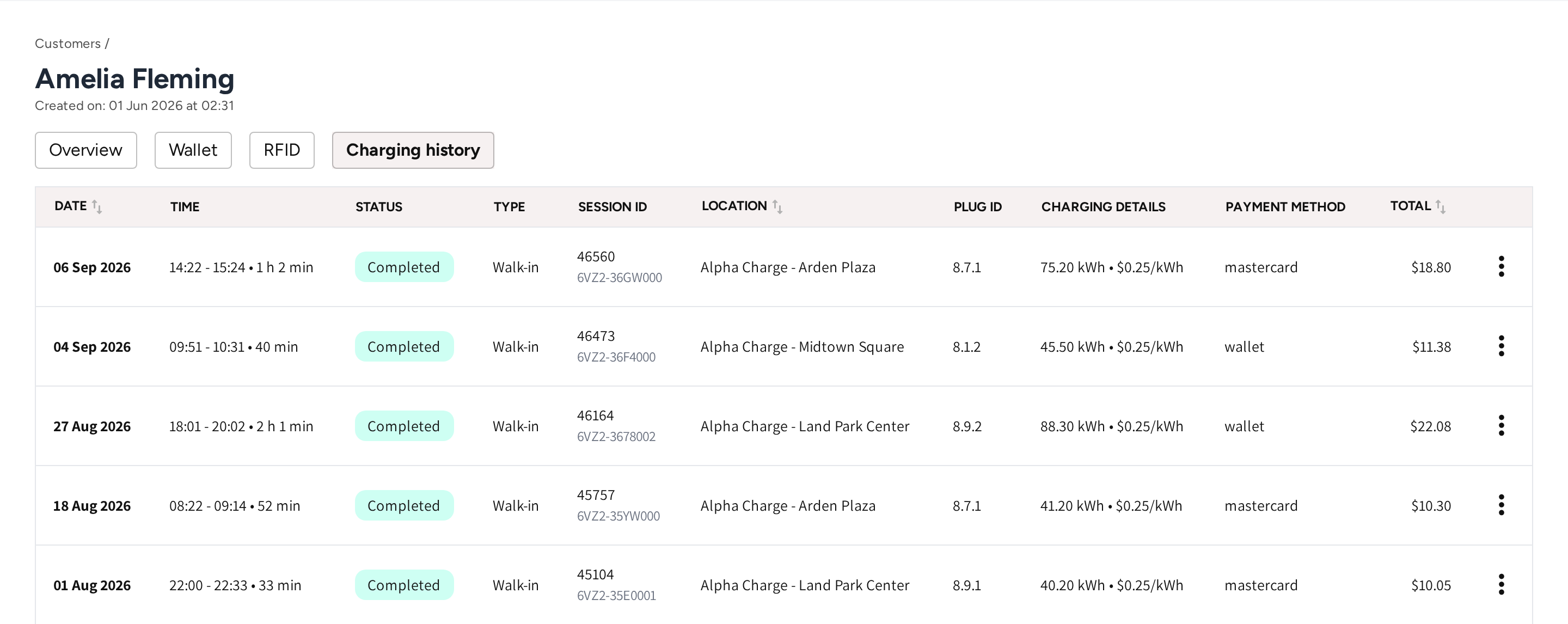
- The customer's name and the date the account was created.
- Overview, Wallet, RFID and Charging history: the tabs of the customer's account.
- Charging history: every session on the account, newest first.
- Session ID, Location and Plug ID: which session it was and where it ran.
- Charging details, Payment method and Total: the energy and price, how the driver paid, and the cost.
Find a customer
- Go to Customers.
- Type in the search box.
The search matches the email, the name, the customer ID or number and the phone number. It also matches the tag of a physical key, in full or in part. Click a column heading with arrows to sort the list by it.
Create an account for a driver
- Click Add new user.
- Enter the Email, and the First name and Last name if you have them.
- Click Save.
The customer then shows in the list, and the account belongs to that email. If phone numbers are part of your account, then the form and the list also show Phone number.
Read a customer's account
Click a customer's email to open their account. The tabs are:
| Tab | What you find there |
|---|---|
| Overview | The User details card: name, email and ID. Click Edit to correct them. |
| Wallet | The wallet balance and every movement on it, see Wallet. |
| Car plates | The cars the driver registered in the app, with the main one marked Primary. |
| RFID | The physical keys on the account. |
| Charging history | Every session on the account. |
If the wallet is part of your account, then the Wallet tab is shown. If the driver has registered a car in the app, then the Car plates tab is shown.
In Charging history, click a date to open the session. The menu at the end of a row opens the session and downloads its logs. For the full picture of a session, see Session details.
Add a physical key for a driver
A driver who gets an RFID key card from you can charge with it on their own account. The session is paid the way their app pays.
- Open the customer and go to the RFID tab.
- Click Add RFID key.
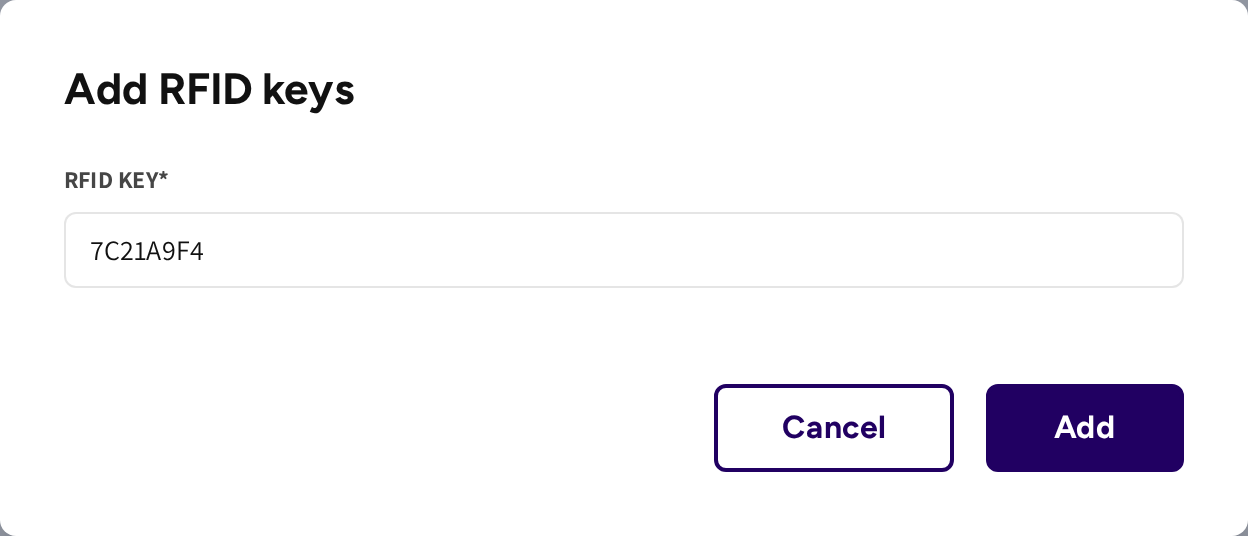
- Enter the tag printed on the key under RFID key.
- Click Add.
The key then shows on the tab with the date it was added, and the Charge keys column counts it. To change or remove a key, open the menu at the end of its row and click Edit or Delete. A deleted key stops working at once.
Keys of fleet drivers are not listed here. They are managed under Fleet, see Charge keys, cars and drivers.
Common questions
How do I find a driver who only gives me the number on their key? Type the tag in the search box on Customers. The search also matches the tags of physical keys.
A driver has a new key card. How do I activate it? Open the customer, go to RFID, click Add RFID key, enter the tag and click Add. The key works right away and charges the driver's own account.
Why is there no Car plates tab for a customer? The tab only appears once the driver has registered a car in the app. Until then there is nothing to show.
How do I send a message to one driver? Go to Customers → Notifications and send a notification with the Selected users condition, see Push Notifications.
What does Not active mean in the Wallet column? The driver has not activated the wallet in the app yet. They can still pay with their card.
Updated 11 days ago