
Price profiles
Build a price once and assign it to locations and chargers: flat or component prices per kWh, per minute or per hour, time of day and holiday prices, and live market prices.
A price profile is a price you build once and assign to every location and charger that should use it. Price profiles in the main menu holds all of yours, for chargers of every type.
At a glance
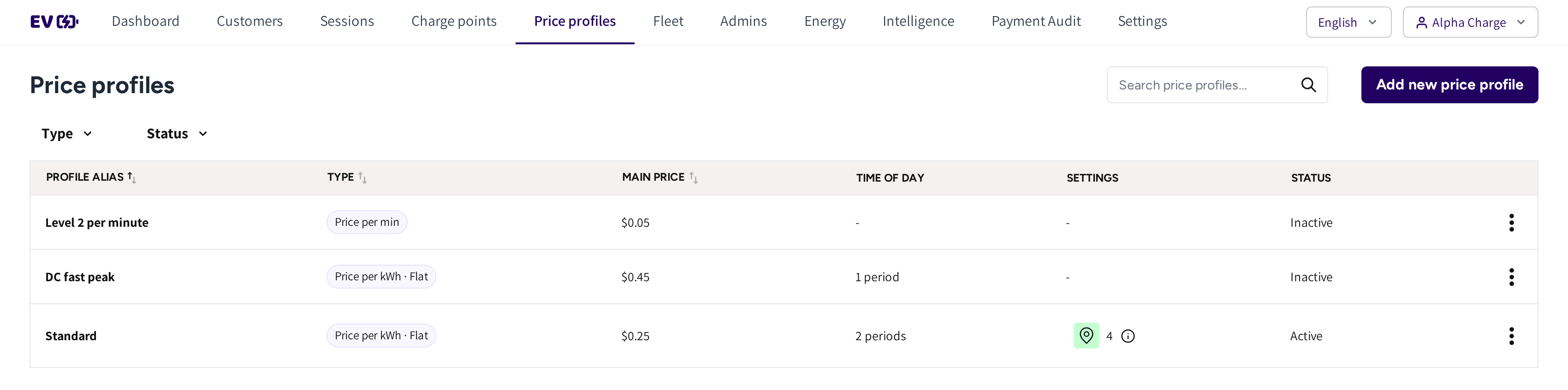
- The search box and Add new price profile: find a profile, or build a new one.
- Type and Status: the filters of the list.
- Profile alias, Type and Main price: the name, kind and base price of each profile.
- Time of day: how many custom price periods and dates the profile has.
- Settings: how many locations and chargers use the profile.
- Status: Active if the profile is assigned somewhere, Inactive if it is not.
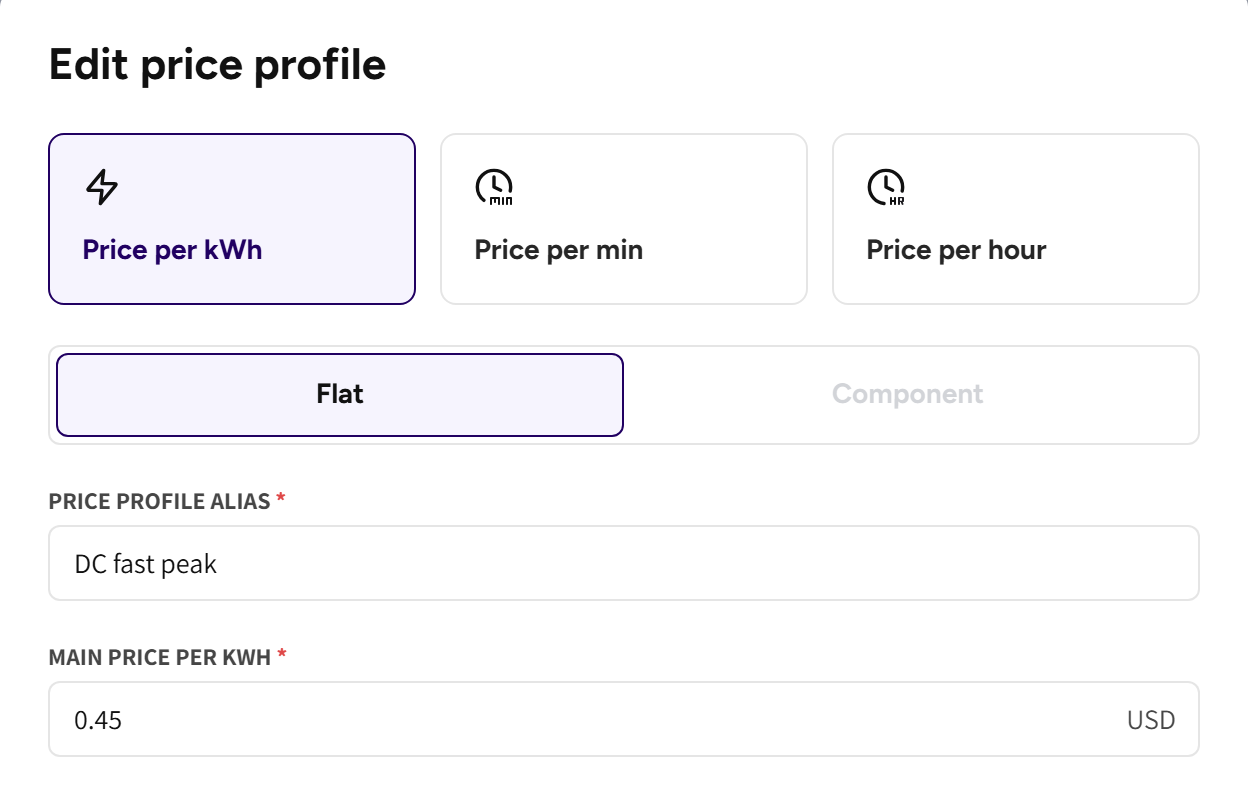
- Price per kWh, Price per min and Price per hour: what the driver pays for.
- Flat and Component: for a price per kWh, one number or a price built from parts.
- Price profile alias and Main price per kWh: the profile's name and its base price.
How profiles apply
- A profile on a location prices every charger at the site.
- A profile on a charger prices that charger only.
- If a charger and its location both have a profile, then the charger's own profile applies.
Use location profiles as the rule, and give a charger its own profile only when it should cost something different. A charger without its own profile follows its location, and is not counted as a charger of the profile.
If a plug on a private charger has Paid charging on, then its owner pays by the charger's profile. Without a profile the owner's monthly bill shows no charging, see Monthly billing for plug owners.
Create a price profile
- Go to Price profiles and click Add new price profile.
- Pick the type: Price per kWh, Price per min or Price per hour.
- For a price per kWh, pick Flat or Component.
- If you manage several operators, then pick the Operator.
- Enter a Price profile alias your team will recognize.
- Enter the main price, and any custom prices.
- Click Save.
The profile shows Inactive until you assign it to a location or a charger.
The profile types
| Type | What the driver pays | Custom prices |
|---|---|---|
| Price per kWh · Flat | One price per kWh | Yes |
| Price per kWh · Component | A price per kWh built from Electricity costs, Usage fee and Revenue share rate, each for Shared and Dedicated plugs | No |
| Price per min | A price per minute the session runs | Yes |
| Price per hour | A price per hour the session runs | Yes |
| Live prices | The live electricity market price plus your own parts | No |
If live prices are part of your account, then Live prices is offered as a type too. Its form has one Price settings block:
- Price zone: DK1 or DK2, the market whose price the profile charges.
- Raw spot price: the market price, filled in for you, plus your Electricity price supplement.
- Electricity tax to the state and Transmission costs for the energy grid: fixed parts of the price.
- Transport costs - Net tarif C: a fixed part in four time bands of the day.
- Refund: a Refund rate that is taken off.
- Total price per kWh: worked out as you type.
The form shows the raw spot price and the total price per kWh for both zones. Update the transport bands when they switch between summer and winter rates.
If your account has an Electricity pricing card on the Home chargers tab, then note that it is a different thing. It sets what a home charger's owner is paid back for their electricity, not what a driver pays.
Custom prices by time of day
Time of day sets other prices at set hours, for example a higher price in the evening. It works on flat, per minute and per hour profiles.
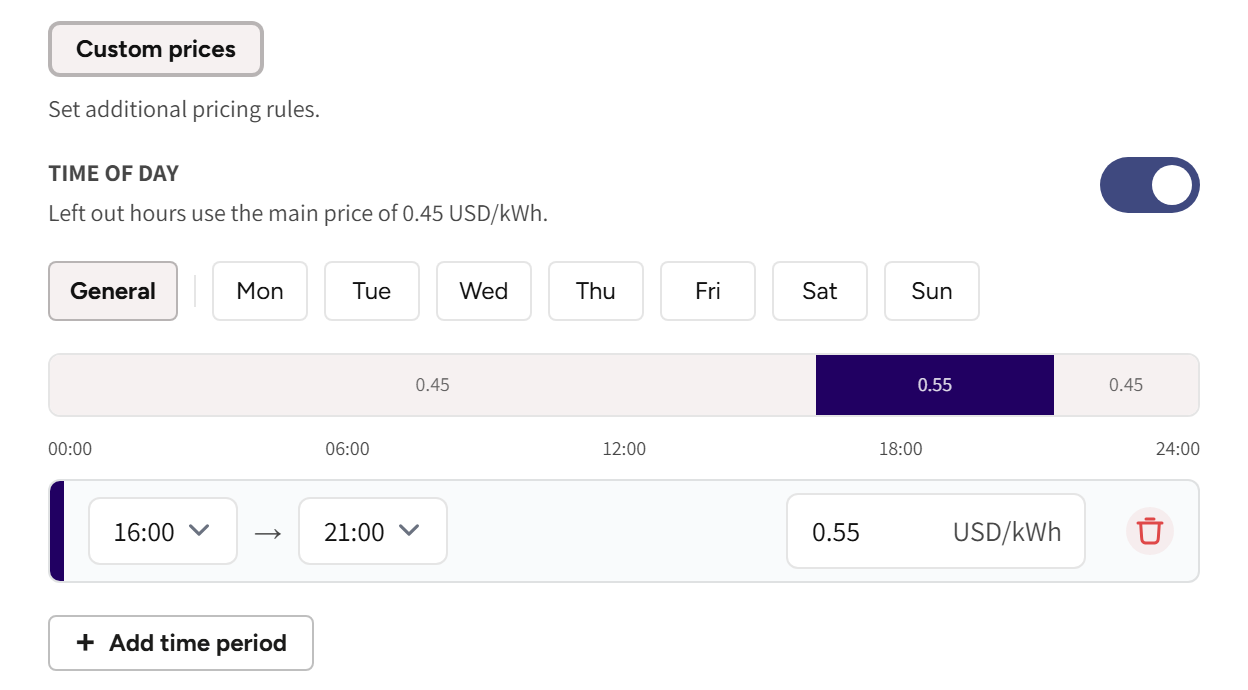
- Switch on Time of day under Custom prices.
- Pick a day tab: General for every day, or Mon to Sun for one day.
- Click Add time period.
- Pick the start and end hour, and enter the price.
Hours without a period use the main price. The timeline above the periods shows the day tab you are on. A dot on a day tab means that day has periods of its own.
Periods run in whole hours, from 00:00 to 23:00, and may run past midnight, for example 22:00 to 06:00. If two rules could apply, then the more specific one wins: a date beats a weekday, and a weekday beats General.
Date-based pricing
Date-based pricing prices a whole day or a range of days, such as a public holiday or a festival week.
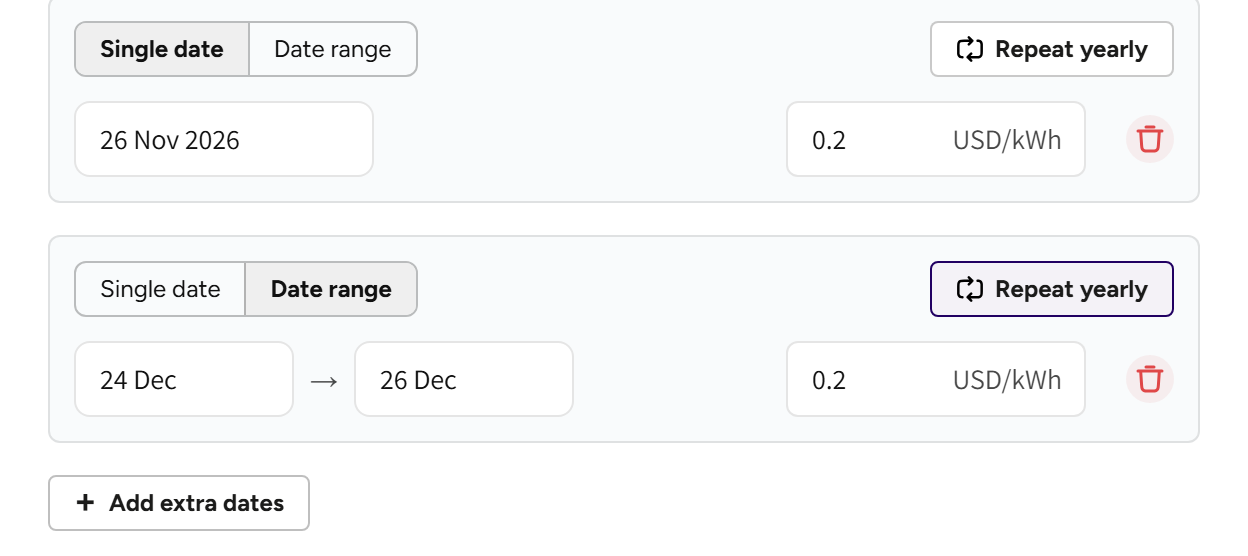
- Switch on Date-based pricing.
- Pick Single date or Date range.
- Click Select date and pick the day, or the first and last day.
- Click Repeat yearly if the date should be priced this way every year.
- Enter the price, and click Add extra dates for the next one.
A date applies all day and wins over the time of day periods. A range must start and end in the same year, so split a period over New Year into two entries. Two dates may not cover the same day, and that includes a yearly date that lands on it.
Add a service fee
Switch on Service fee under Settings and enter an amount in the profile's currency. A Service fee is a fixed fee on each session that delivered energy, wherever the profile applies.
The driver sees it as its own Service fee line on the receipt. It shows the same way in the invoice breakdown of Payment Audit.
Assign a price profile
You can assign a profile from the location, from the charger, or from inside the profile. From inside the profile is the fastest way when one profile covers many sites.
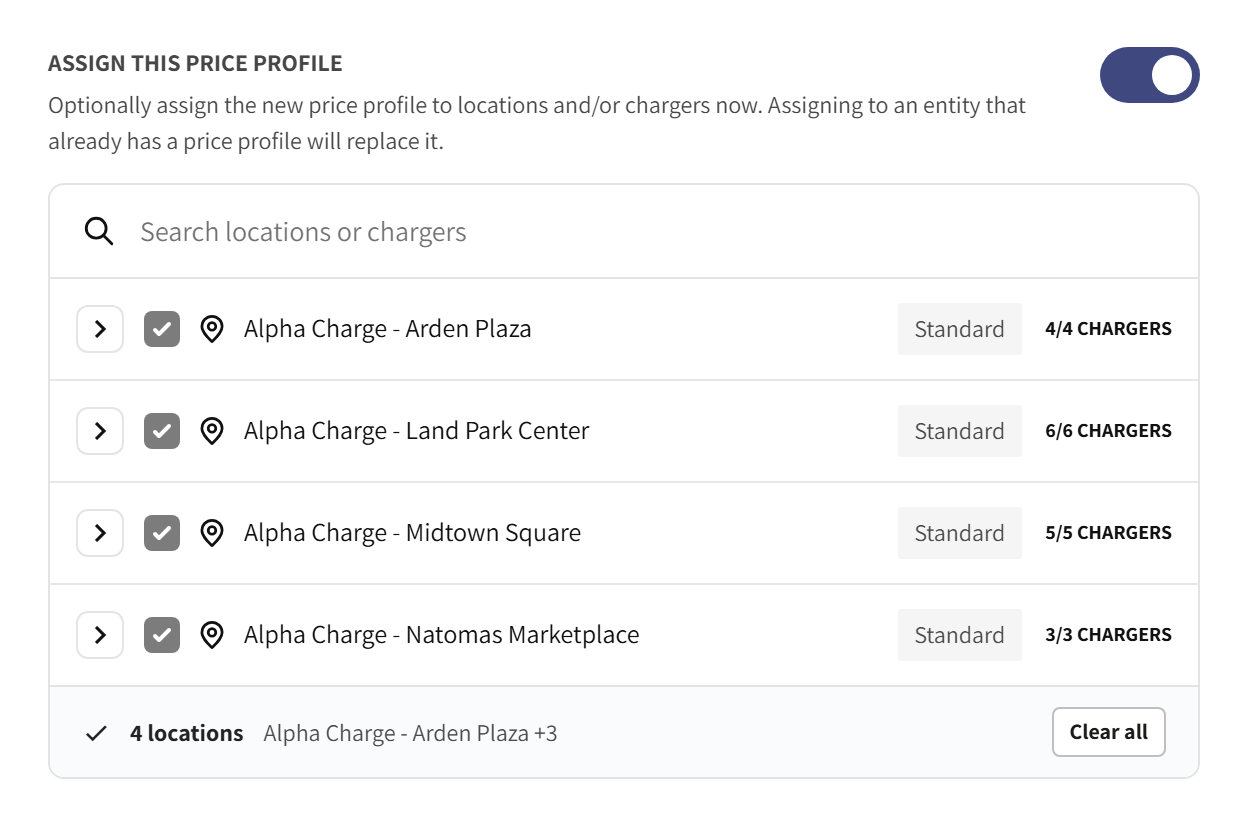
- Open the profile and switch on Assign this price profile.
- Type in Search locations or chargers to narrow the list.
- Tick a location to price every charger at it, or open the location to tick single chargers.
- Click Save.
When you edit a profile, the locations that use it, or have a charger on it, are listed first. Each row shows the profile the site uses today and how many of its chargers you picked. Select all and Deselect all work on the chargers of one location, and Clear all empties the whole selection.
If you edit a profile that is in use, then its locations and chargers are ticked and locked. To take a site off the profile, give it another profile.
On a location or charger form, Price profile lists each profile with its type and current price. It also has Add new price profile and an eye icon to check a profile first.
Edit, duplicate and delete
- Edit: saving a profile in use creates a new version, and its locations and chargers move onto it. Sessions already priced keep the version that priced them, so past invoices never change.
- Duplicate: copies the setup under a new alias, the quick way to a seasonal or campaign price.
- Delete: if the profile is still assigned somewhere, then you pick a replacement first, so nothing is left without a price. A deleted profile drops out of the list, and the Status filter brings it back.
Common questions
Which profile applies if a location and a charger both have one? The charger's own profile. A charger without a profile of its own follows its location.
Can I charge a different price on Saturdays only? Yes. Open the Sat tab under Time of day and add the period there. Periods under General apply every day.
How do I price a public holiday? Use Date-based pricing, pick the date and click Repeat yearly if it falls on the same date every year. The date applies all day and wins over time of day periods.
My new profile says Inactive. Did I do something wrong? No. A profile shows Inactive until it is assigned to a location or a charger. Assign it and it turns Active.
What happens when I edit a profile that is in use? A new version is created and its locations and chargers move onto it. Past sessions and invoices keep the version that priced them.
Updated 11 days ago