
Support cases
Read every chat and call your drivers had with your AI support, see how each one ended, and open the full conversation.
Support cases lists every chat and call between your drivers and your AI support. Use it to see how each case ended, follow up with a driver, or learn what drivers ask most.
At a glance
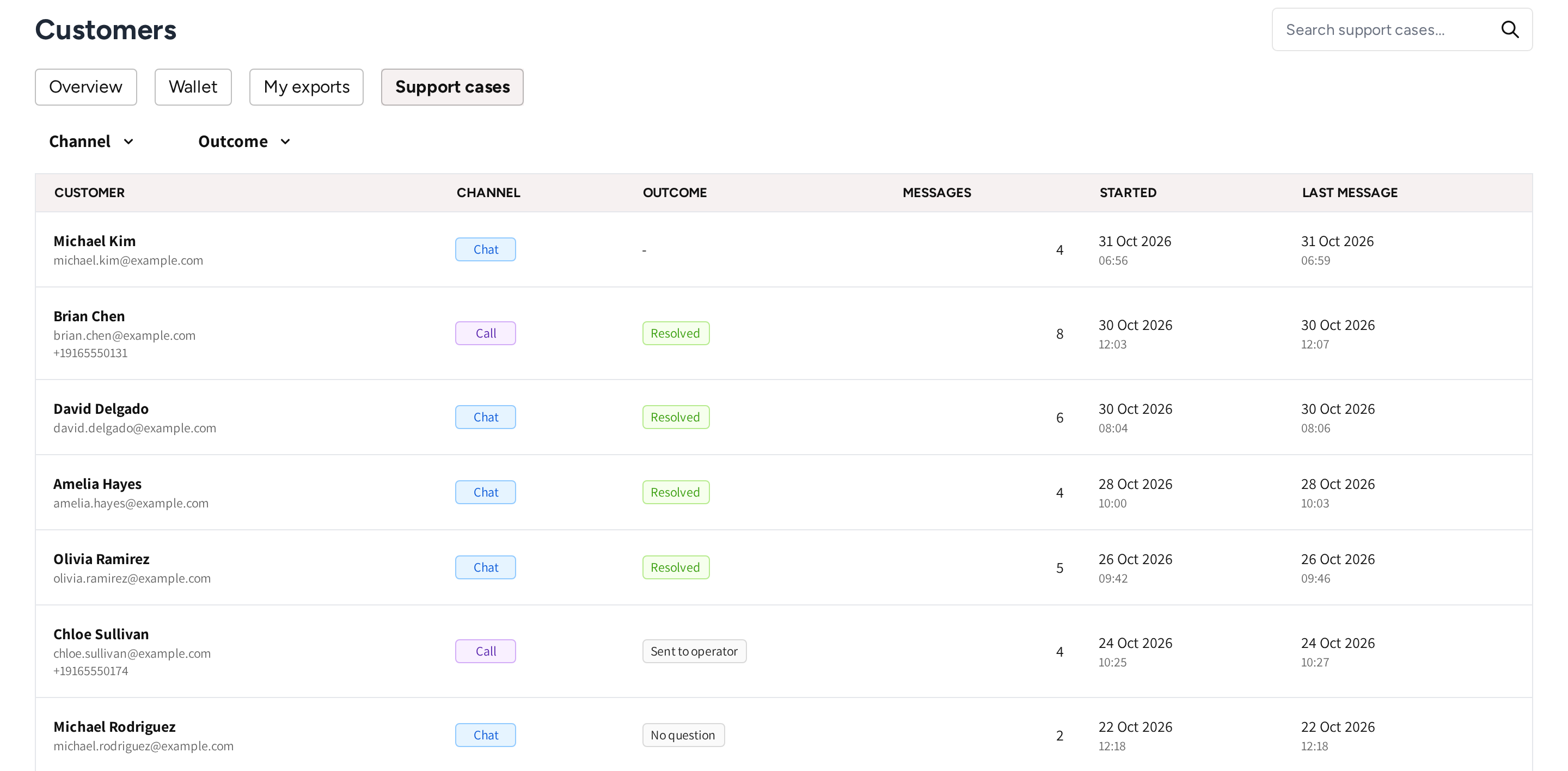
- Support cases: the tab of Customers that holds the list, next to the other tabs of the section.
- The search box: find the cases of one driver by first name, last name or email.
- Channel and Outcome: the two filters of the list.
- Customer: the driver's name and email. Click a row to open the case.
- Channel: Chat for a conversation in the app, Call for a phone call.
- Outcome: how the case ended, see the table below. A dash means the case has no grade.
- Messages, Started and Last message: how long the conversation was, and when it began and ended.
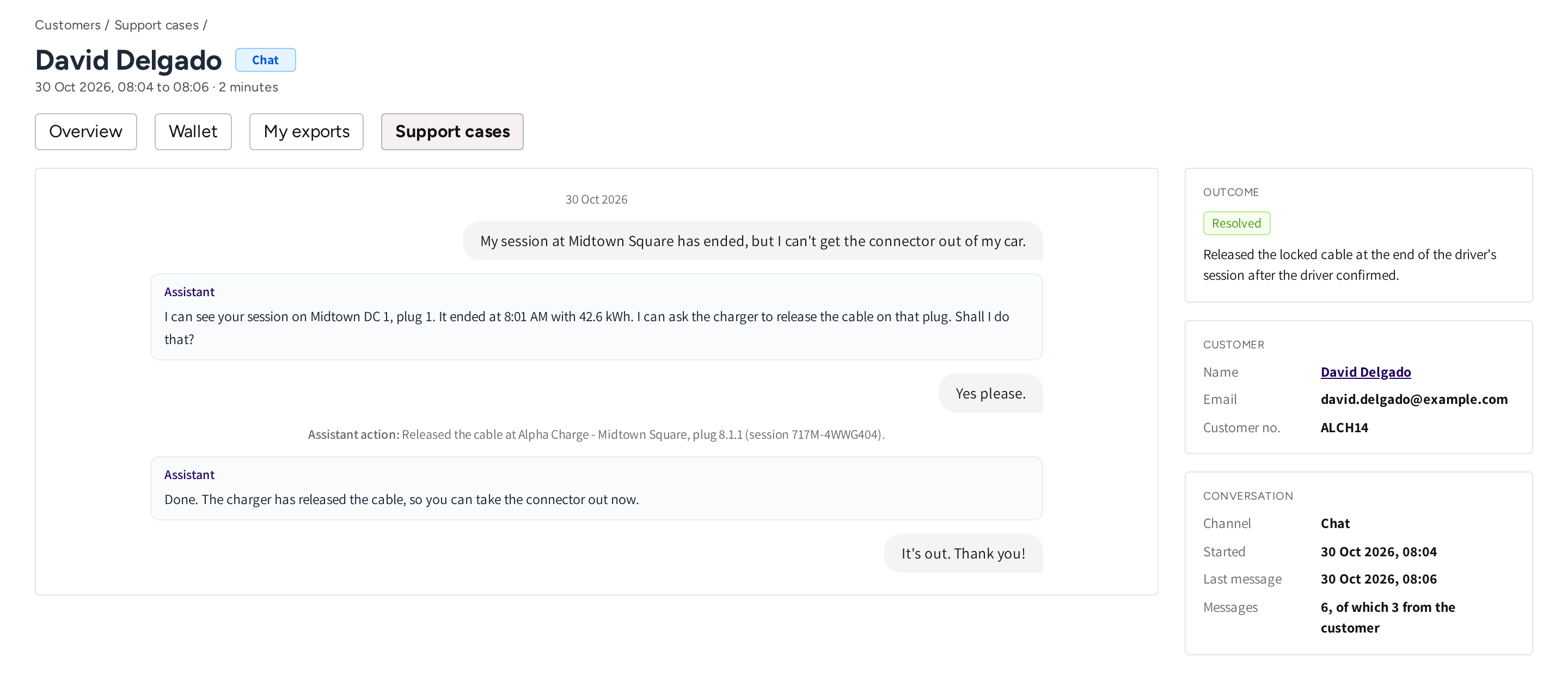
- The breadcrumb and the tabs of Customers stay above the case.
- The header: the driver's name, the Chat or Call tag, and the time span of the case with its length.
- The conversation: the driver's messages on the right, the Assistant replies on the left.
- Assistant action: a line in the conversation each time the assistant acted for the driver.
- Outcome: how the case ended, with one line on why.
- Customer: who the driver is, with a link to their account.
- Conversation: the channel, when it started and ended, and how many messages came from the driver.
Find a case
- Go to Customers → Support cases.
- Type the driver's first name, last name or email in the search box, or pick a Channel or Outcome.
- Click a row to open the case.
The newest activity is at the top. The filters stay in the page address, so you can bookmark a filtered list or share it with a colleague.
What a support case is
A support case is one conversation between a driver and the AI support. If a driver writes again within 8 hours of their first message, then the chat continues the same case. A message after that opens a new case.
Each phone call is a case of its own, with the Call tag. If the caller is not one of your customers, then the list shows the number they called from, or Hidden number.
Read the outcome
A case is graded once it has ended: a call right away, a chat 8 hours after its first message. The Outcome shows the result, and the case page adds one line on why.
| Outcome | What it means for you |
|---|---|
| Resolved | The assistant answered the question or did what the driver asked. |
| Not resolved | The driver's question was still open when the case ended, so it may be worth a follow up. |
| Sent to operator | The assistant gave the driver your support contact, or passed the call on to your team. |
| No question | The driver opened the chat or call and asked nothing. |
| A dash | The case has no grade, either because it has not ended yet or because it could not be graded. The Outcome filter calls these Not graded. |
Questions about refunds, invoices and disputed charges get the contact of whoever bills the driver. Those cases read Sent to operator. Filter on Sent to operator to find the drivers who may contact you.
Read a case
Click a case in the list to open it. The conversation is on the left, and three boxes sit beside it.
- Outcome: the outcome and the reason for it. If the case is graded, then the box is shown.
- Customer: Name, Email and Customer no. of the driver. Click the name to open their account.
- Conversation: Channel, Started, Last message and Messages, with how many came from the driver.
The conversation shows what the driver and the assistant said. Lookups the assistant made in the background are not shown.
Assistant actions
The assistant can act for the driver after the driver says yes. It stops a session that will not stop, and it releases a cable still locked after the driver's session. Each attempt shows as an Assistant action line, with the session, the location and the plug.
The line also says when the charger did not answer or could not release the cable. Open the session from Customers or Sessions to see what happened next.
Calls
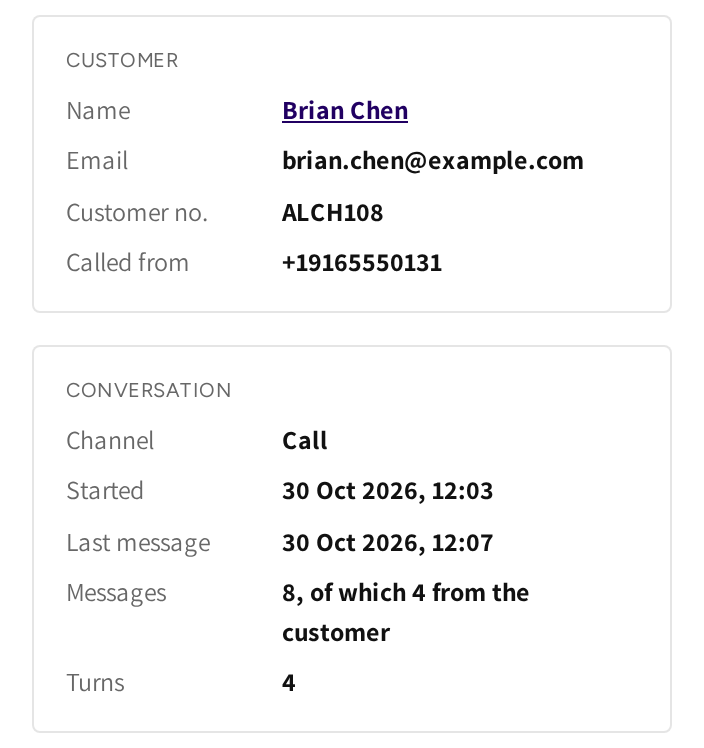
On a call, Customer adds Called from: the number the driver called from. Conversation adds Turns, the number of times the caller spoke to the assistant. If a call was stopped by the limit on calls, then (call cap reached) or (daily cap reached) follows the number.
The cases of one driver
Open a customer and go to their Support cases tab. It lists that driver's chats and calls, newest first, with the same Channel and Outcome filters.
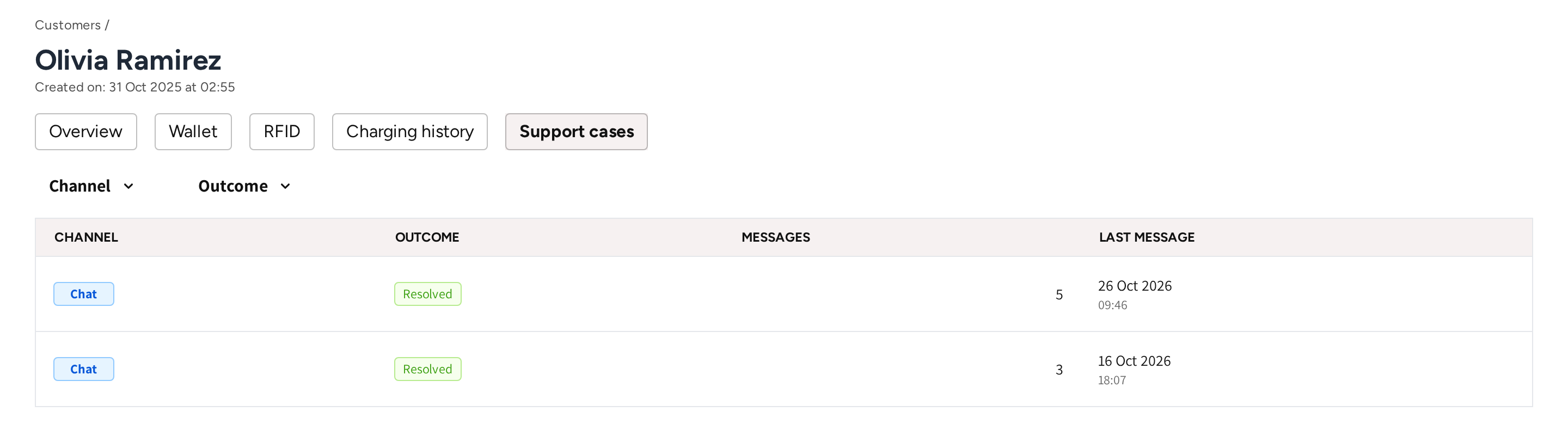
On the customer list, Support 30d counts each driver's cases in the last 30 days. Click the number to open the driver's Support cases tab, see Customers.
Who sees support cases
If the AI support chat is part of your account, then every chat and call of your drivers is listed here. If your account manages other operators, then you see the cases of your own app's drivers, not theirs.
If your branded app has no AI support chat, then the Support cases tab shows example rows and a short description, with none of your data. See AI support chat for what drivers can ask it.
Common questions
Can I reply to a driver from a support case? No. Support cases are read only, so contact the driver yourself with the email on the case.
Why does a case show a dash under Outcome? The case is not graded yet, or it could not be graded. A chat is graded 8 hours after its first message, and a call right after it ends.
A driver says the assistant stopped their session. Where do I see it? Open the driver's case under Support cases. An Assistant action line shows the session, the location and the plug it stopped.
Why did a driver's two chats on one day become one case? A chat continues the same case for 8 hours after its first message. A message after that opens a new case.
How do I find the cases that need me? Filter on Sent to operator to find drivers who were given your contact. Filter on Not resolved to find questions the assistant could not answer.
Updated about 6 hours ago