
Intelligence
Watch the health of your chargers in one place: an AI summary of the week, charge success, session faults, grouped issues, the fault log, and a health view per charger and per site.
Intelligence watches your chargers and sessions for problems, so you find them before drivers report them. Open it to see how the network did this week and where to look when something goes wrong.
At a glance
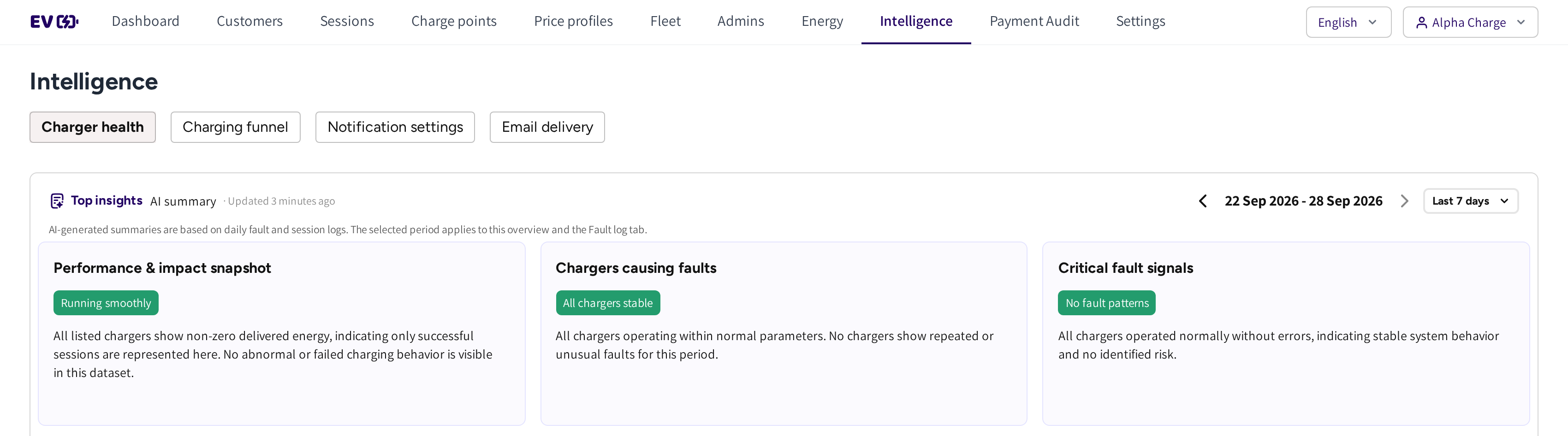
- Charger health, Charging funnel, Notification settings and Email delivery: the parts of the section.
- Top insights: an AI summary of the period in three cards, with the period arrows and Last 7 days.

- Charge success: the share of sessions without a failure, with the change against the period before.
- Session faults: the failed sessions of the period, in four views. If the period was clean, then it reads No session faults.
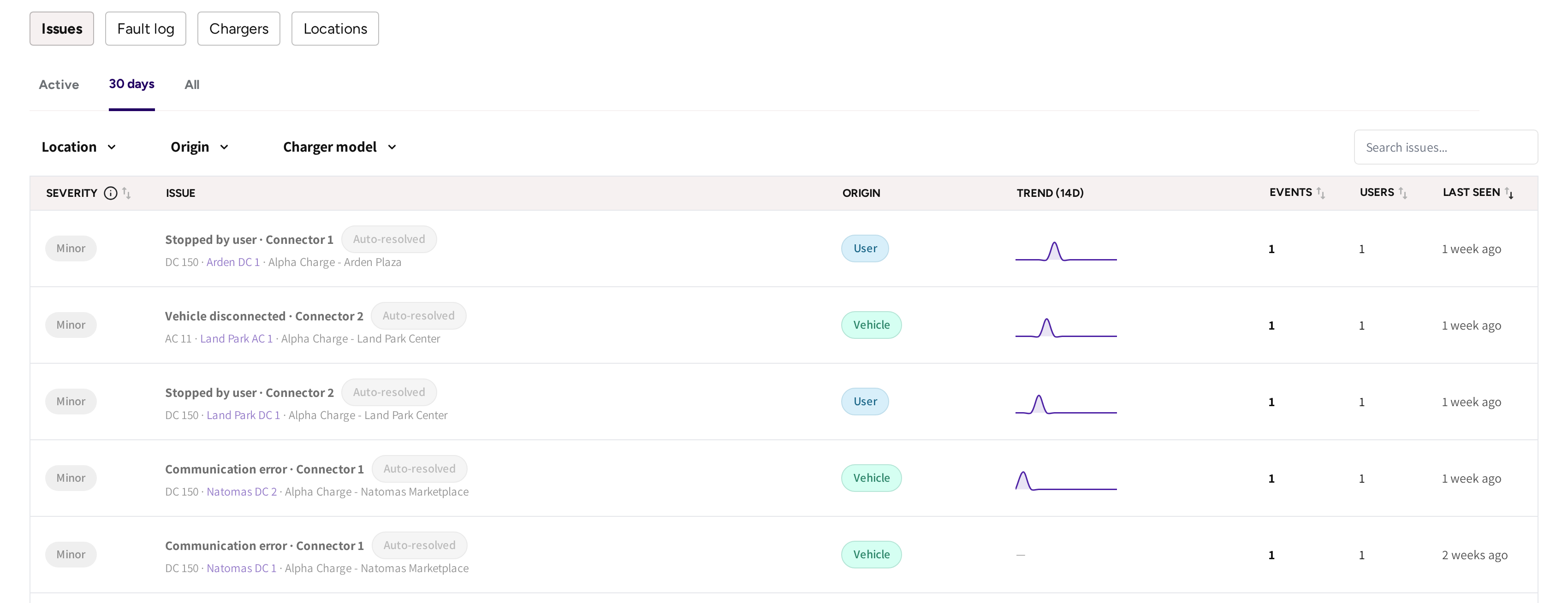
- Issues, Fault log, Chargers and Locations: the tabs under the overview.
- Active, 30 days and All: which issues the list shows, here the ones from the last 30 days, all Auto-resolved.
The parts of Intelligence
| Part | What it is for |
|---|---|
| Charger health | The overview and the Issues, Fault log, Chargers and Locations tabs. |
| Charging funnel | Every charging attempt, also the ones that never became a session, and where they were lost. See Charging funnel. |
| Notification settings | Who gets an email when a charger has a problem, and for which locations. See Notification settings. |
| Email delivery | Whether the emails sent on your behalf arrived. See Email delivery. |
| Zone monitoring | If your account has a monitoring tool, then this opens it in a new tab. |
Act on what needs attention
If chargers need looking at right now, then a yellow strip that starts with Needs attention: appears above everything else. It reads as one line, for example "2 chargers offline over 30 min · 1 faulted".
- It counts chargers, not events, so one charger that keeps dropping is counted once.
- It is live and does not follow the period you pick.
- offline over 30 min means offline for more than 30 minutes, so a quick reboot does not count.
- with an unstable connection means the connection dropped repeatedly in the last 24 hours.
Each count opens the Chargers tab filtered to those chargers. If nothing needs attention, then the strip is not shown.
Pick the period
- Open the period picker next to the date range.
- Pick Last 7 days, Day, Week or Month.
- Use the arrows to step back to earlier periods.
The overview and the Fault log follow the period. The Chargers and Locations tabs do not, so their rows stay in place while you browse.
If you oversee other operators, then the CPO filter narrows Intelligence to one of them.
Read the summary
Top insights sums up the period in three cards, with the time of the last update.
- Performance & impact snapshot: how charging went overall.
- Chargers causing faults: chargers that failed more often than the rest.
- Critical fault signals: repeating fault patterns that point at the hardware or the site.
Each card carries a label. If the week was clean, then the labels read Running smoothly, All chargers stable and No fault patterns. If faults happened, then the labels say how serious they are.
Read charge success
Charge success is the share of sessions in the period that delivered energy without a failure. The arrow compares it with the period before. If no session failed, then the card also shows Healthy.
| Figure | What it means for you |
|---|---|
| Analyzed sessions | The sessions the period had to judge. |
| Successful sessions | The sessions that delivered energy. |
| Fault rate | The share of sessions that failed, with its own arrow. |
| Session faults | The number of failed sessions. |
| Users affected | The drivers behind the failed sessions, counted by app account or charging key. |
If a session was paid at a card terminal, then it has no driver linked, so the real number of users affected can be higher. If the period has no sessions, then the card shows No sessions in this period. instead of a score.
Charge success counts only sessions that started on a charger. The Charging funnel also counts the attempts that never got that far.
Read the session faults
If sessions failed, then Session faults shows them in four views of the same faults.
- What happened: the kind of fault, for example Vehicle disconnected.
- What caused it: where the fault points, such as the charger, the vehicle or the driver.
- Where: the locations.
- Which chargers: the chargers.
Each view lists the top five and adds up to the same number of faults. Faults reported by the chargers themselves, such as going offline, appear in Issues and the Fault log, not here.
Use the tabs
- Issues: repeated faults grouped into one row per problem, with a severity and automatic resolution. See Issues.
- Fault log: every session fault and charger event in the period. See Fault log.
- Chargers: every charger's connection, charge success and open issues, and the analysis page behind each one. See Charger analysis.
- Locations: the same per site. See Location analysis.
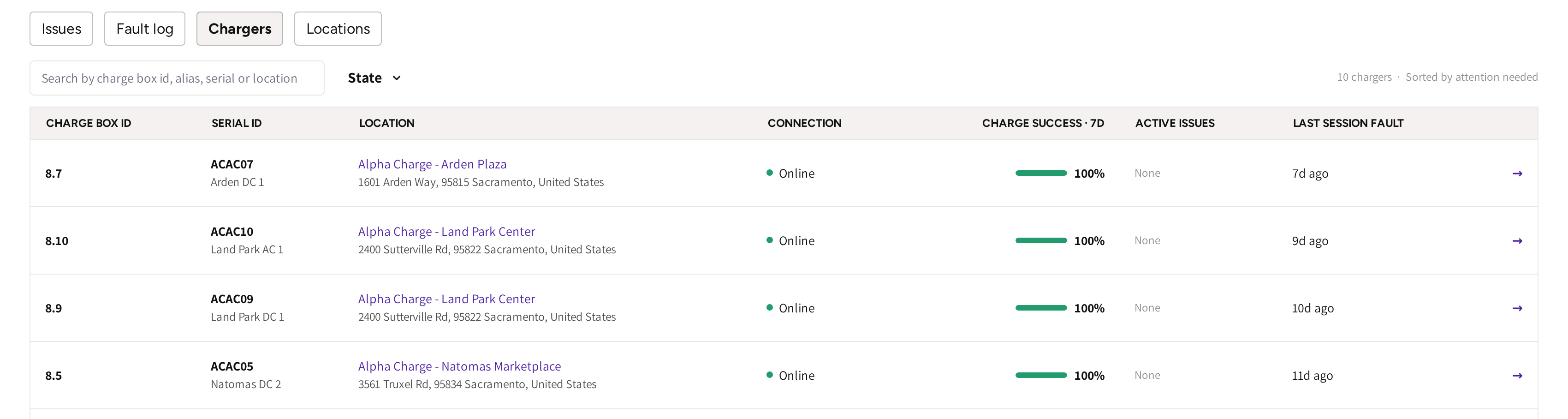
The Chargers tab lists the chargers that need attention first. If the network is healthy, then every row reads Online and 100%.
Three things called Intelligence
- Intelligence, this section: fault monitoring across your network.
- Session Intelligence: the analysis of one session on its detail page. See Session Intelligence.
- Intelligent charging: home charger schedules that move charging to cheaper hours, nothing to do with faults.
Common questions
Where do I start when something is wrong? If the Needs attention: strip shows, then start there, because it names what is broken right now. If it does not show, then open Issues, the grouped list of problems worth acting on.
Why does one charger have many rows in the Fault log but one row in Issues? The Fault log lists every event. Issues groups repeated faults on the same charger into one problem with a count and a trend.
Charge success looks fine, but drivers complain. Why? Charge success only counts sessions that started, so an offline charger cannot lower it. Check the Needs attention: strip, the Chargers tab and the Charging funnel.
Does an issue close by itself? Yes. If the same plug has five successful sessions after the issue's last fault, then the issue resolves itself and shows Auto-resolved.
Why can I not see Intelligence in my menu? If your admin account does not have permission to view Intelligence, then it is not in your menu. Ask your account owner for access.
Updated 24 days ago