
Sessions
Find any charging session, see what is charging right now, stop a session remotely, export sessions and invoices, and manage upcoming bookings.
Sessions lists every charging session on your network, the ones running now at the top. Use it to find the session a driver asks about, stop a charge and export your records.
At a glance

- The search box: find a session by ID, driver, email, user number, location or operator.
- Export sessions and Export invoices: download your records as a file.
- All sessions, Fleet sessions, Upcoming and My exports: the tabs of the section.
- Status, Type, User, Location and Payment method: the filters of the list.
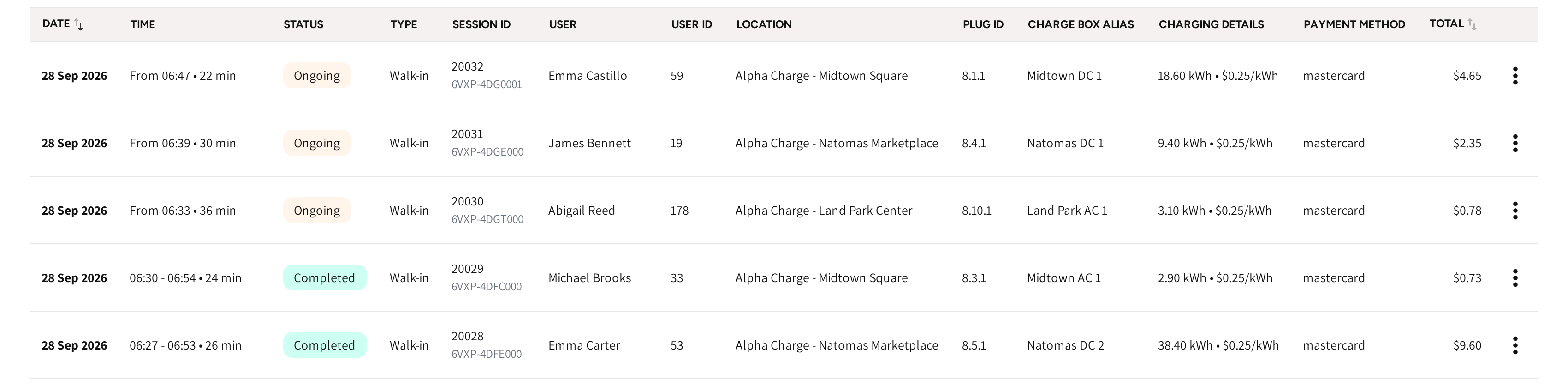
- Ongoing rows: sessions charging right now, with the start time, how long they have run and the energy so far.
- Completed rows: finished sessions, with start and end time, energy, price per kWh and total.
- The menu at the end of each row: the actions for that session.
Find a session
- Type in the search box: a session ID, a driver's name, email or user number, a location or an operator.
- Narrow the list with the filters if you need to.
- Open the menu at the end of the row and click View session details.
If you type a first and last name together, then the search finds the driver too. If you search by session ID, then the first four characters are enough.
The session opens on its own page, described in Session details.
Read the list
| Column | What it shows |
|---|---|
| Date and Time | When the session started. If the session has finished, then also when it ended and how long it ran. |
| Status | Where the session stands, see the table below. |
| Type | Walk-in for a driver who arrived and charged, Booking for a booked session. |
| Session ID | The session's number, with its session code underneath; the session's own page and invoices use the code. |
| User and User ID | The driver, and their user number. |
| Location, Plug ID and Charge box alias | Where the session took place and on which plug. |
| Charging details | The energy delivered and the price per kWh. |
| Payment method | The card or charge key that paid. |
| Total | What the session cost. |
| Status | What it means for you |
|---|---|
| Ongoing | The session is charging now. |
| Completed | The session finished. |
| Failed | The session ended without delivering energy. |
| Cancelled | The session never started, for example because the driver did not plug in in time. |
| Blocking | The vehicle is still plugged in after charging ended, so idle time is running. |
Use the session menu
The menu at the end of each row holds what you can do with that session.
- View session details: the full record of the session.
- Download Logs: the charger's own log of the session, for diagnostics.
- Stop session: ends an Ongoing session from here.
- Download invoice: if the session has finished and has an invoice, then this downloads the driver's invoice as a PDF.
If a user does not have permission to view session details, then the first item reads View session insights and opens the charging graph.
Stop a session remotely
- Open the menu at the end of an Ongoing row.
- Click Stop session.
- Click Stop session again in the confirmation to end the charge.
The charge ends at once. You can also stop a session from its own page.
If the charger is offline, then the platform warns you before you confirm. The session is closed in the list, but the charger may keep charging until it is back online.
Export sessions and invoices
- Click Export sessions, or Export invoices for the driver invoices.
- Pick the locations and the start and end date.
- Click Save.
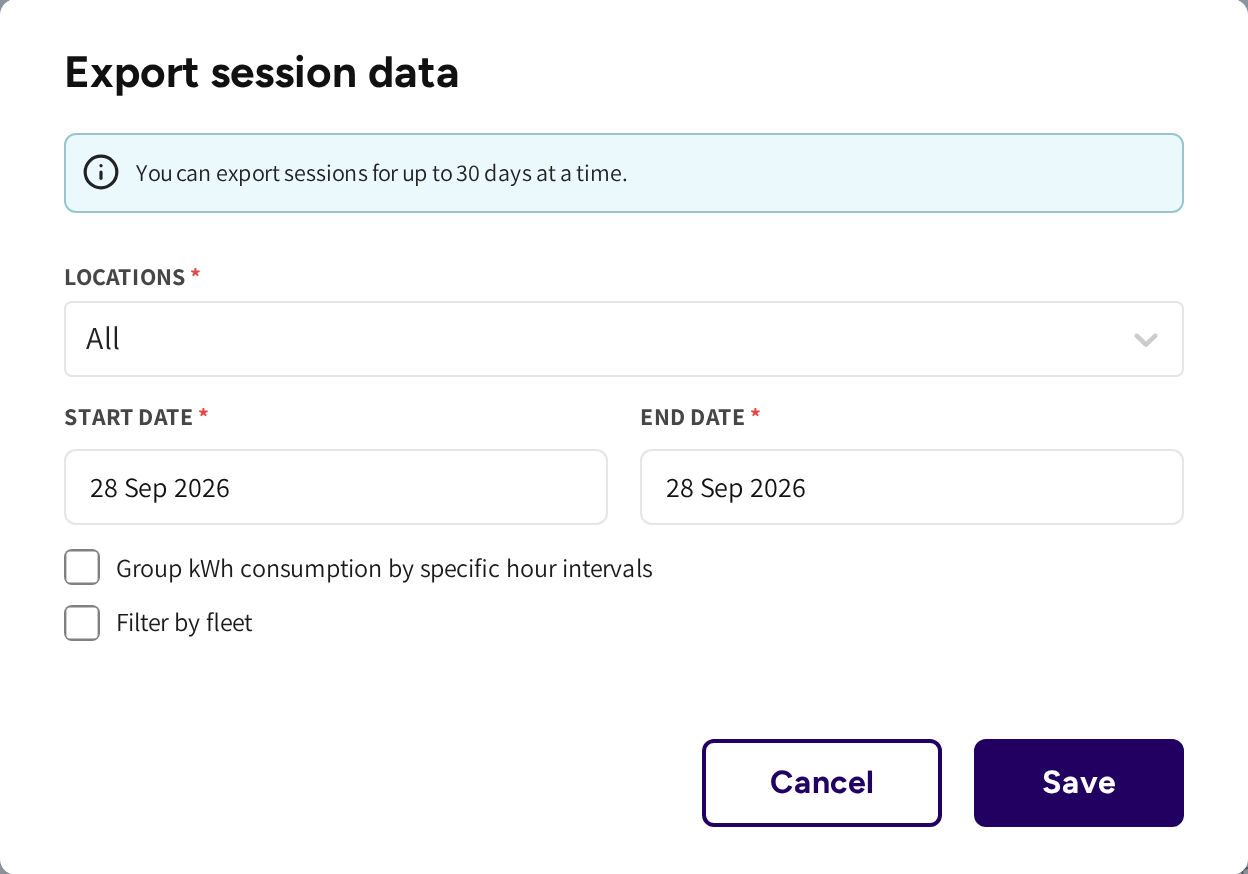
A session export covers up to 30 days at a time, an invoice export up to 7 days. Group kWh consumption by specific hour intervals splits the energy into hour ranges you choose. Filter by fleet limits the file to fleet sessions.
The file is prepared in the background and emailed to you when it is ready. It also lands on My exports, where it stays for 48 hours.
ImportantAn invoice export can be downloaded once. Save it right away. If you lose it, then run the export again to get it back.
A session export can be downloaded as often as you like within the 48 hours.
Manage upcoming bookings
Upcoming lists the bookings that have not started yet. How bookings work is on Booking.
- Open the menu at the end of a booking.
- Click Cancel booking and confirm.
The driver is told in the app, and the time slot opens up for others.
Fleet sessions and failed payments
Fleet sessions shows the same sessions, limited to fleet charging, with the driver, fleet company, team and vehicle. It has its own guide: Fleet sessions.
If failed payments are part of your account, then a Failed payments tab lists the sessions whose card payment did not go through.
Common questions
How do I find a driver's sessions? Type the driver's name, email or user number in the search box. A first and last name typed together works too.
How do I stop a session that is still charging? Open the menu at the end of the Ongoing row, click Stop session and confirm. The charge ends at once.
Why did a session fail or deliver 0 kWh? Open the session and click Analyse session logs on its Session Intelligence card. The analysis explains what happened and whether you need to act.
Where is my invoice export? On My exports, for 48 hours, and in your email. An invoice export can be downloaded once, so if you need it back, then run the export again.
How do I send a driver the invoice for one session? Open the menu at the end of the finished session and click Download invoice. You get the invoice as a PDF.
Updated 12 days ago