
AI support assistant
Ask the chat in your dashboard about your chargers, sessions, keys and prices, have it start an analysis for you, and reach a person when you need one.
The Support assistant is a chat in the bottom right corner of every page of your dashboard. Ask it in plain words about your own chargers, sessions, sites, prices and keys.
At a glance
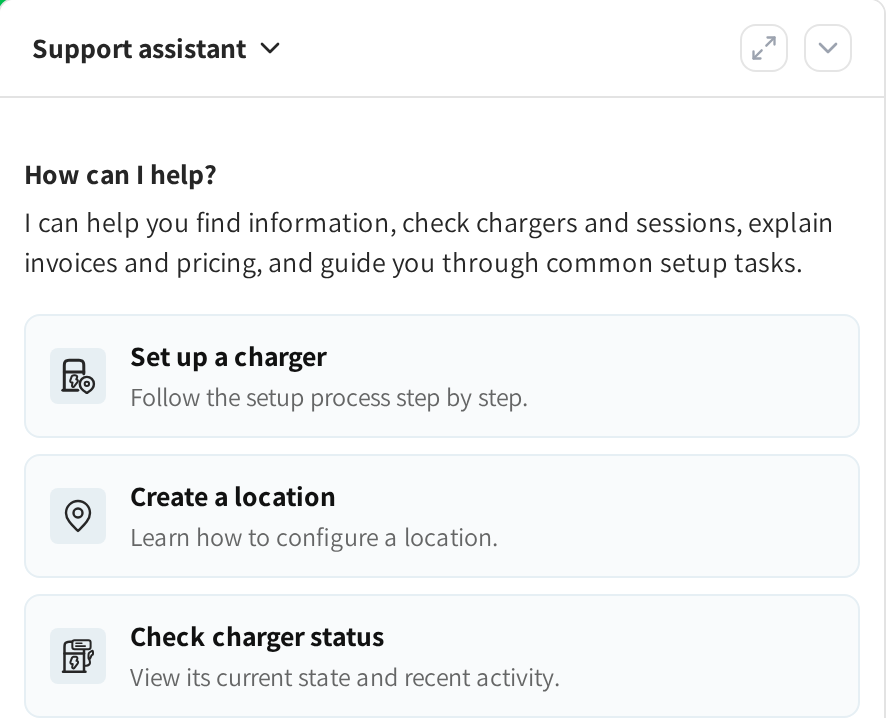
- Support assistant: the title of the conversation. Click it to open an earlier conversation or start a new one.
- The two buttons on the right: expand the chat to a large window, or fold it away.
- How can I help?: a new conversation opens with suggestions such as Set up a charger and Check charger status. Click one to ask it.
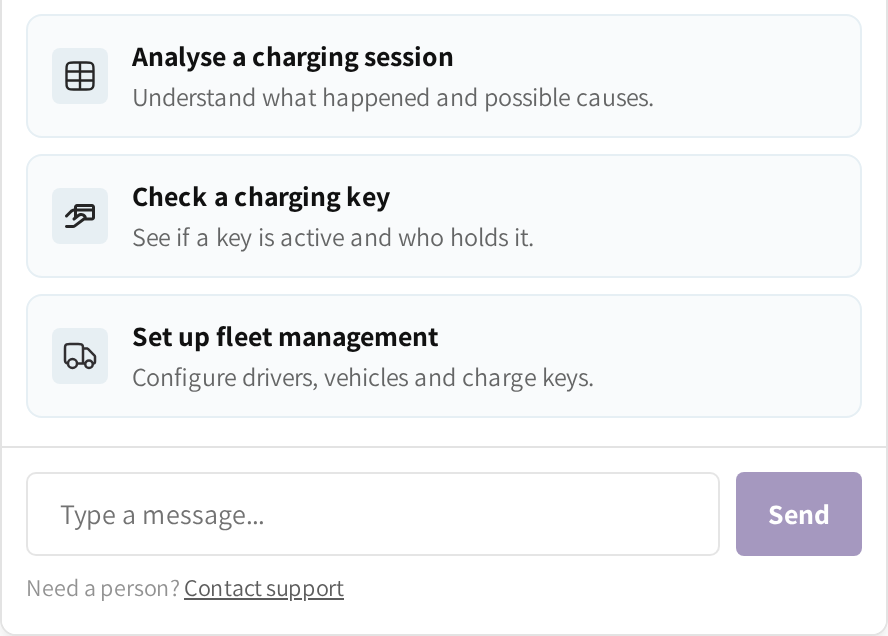
- More suggestions, such as Check a charging key and Set up fleet management.
- Type a message... and Send: where you write your question.
- Need a person? Contact support: shows how to reach the support team.
Ask a question
- Click the round chat button in the bottom right corner of any page.
- Type your question in Type a message....
- Click Send, or press Enter.
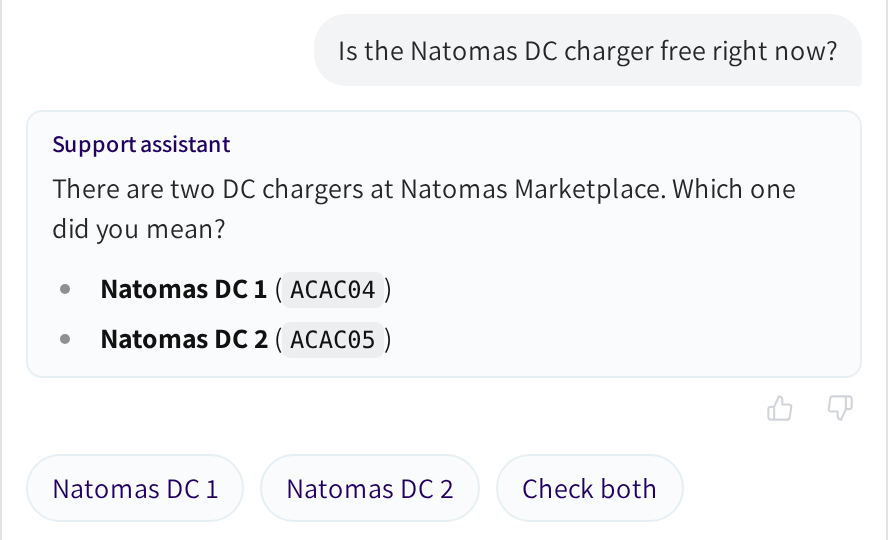
While it looks something up, a short line such as Checking charger status... shows what it is doing. The answer then appears under your question, and the conversation gets a title of its own.
If an answer ends with a question, then the assistant offers up to four one tap replies under it. Click one to send it as your reply.
If you have a session or a charger open while you ask, then you can say "this session" or "this charger". The assistant knows which page you are on.
What you can ask
The assistant looks things up in your own account, the same way you would on the pages:
- Chargers: "Which chargers are offline right now?"
- Plugs: "Which plugs are charging right now?", for the whole network or one site, with each plug's charger and location.
- Sessions: "Show me the latest sessions at Natomas Marketplace"
- Sites: "How is Midtown Square doing?", with charge success, uptime and open issues.
- Prices: "What do drivers pay at Arden Plaza?"
- Fleet: "Is charge key RB1101 active?", answered with the key's fleet, fleet team, car, driver and where it may charge.
- Customers: find a driver's account, their charge key or their wallet balance.
Have it run an analysis
The assistant can start the two AI analyses you can start on the pages yourself:
- A charger analysis, the same as Run analysis on the charger's page in Intelligence. It uses one run of your company's daily allowance.
- A session log analysis, the same as Analyse session logs in Session Intelligence on the session's page. It uses one run of your own daily allowance.
Ask for it in plain words. For a charger analysis, name the charger, the date and the hours to check. The assistant then proposes the run and waits for your yes.
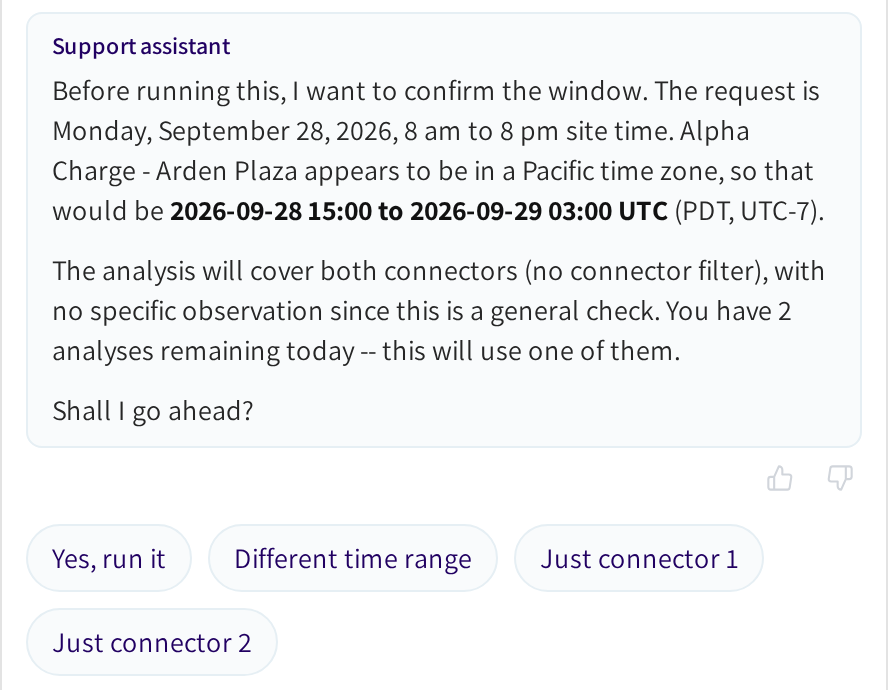
The proposal names the charger, the time window and the plugs it covers. If two or fewer runs are left today, then it also says how many remain. Click "Yes, run it" to start, or pick another reply such as "Different time range".
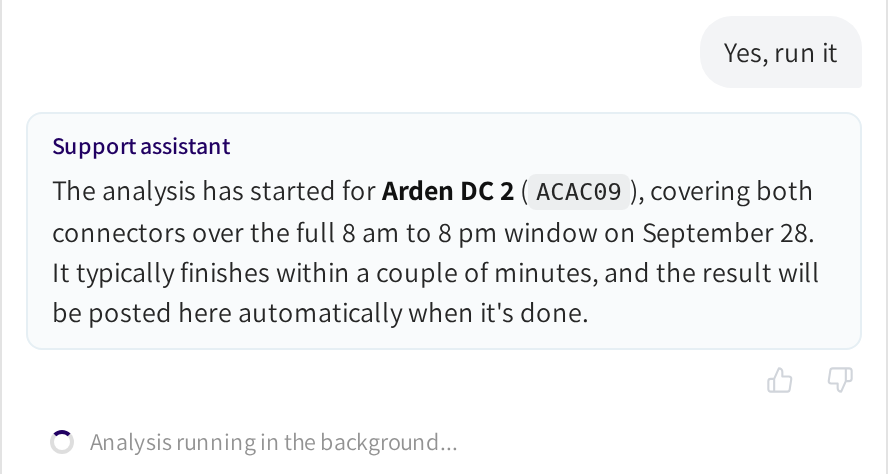
The assistant confirms the start, and the chat shows Analysis running in the background... until the result is ready. You can keep asking other questions meanwhile.
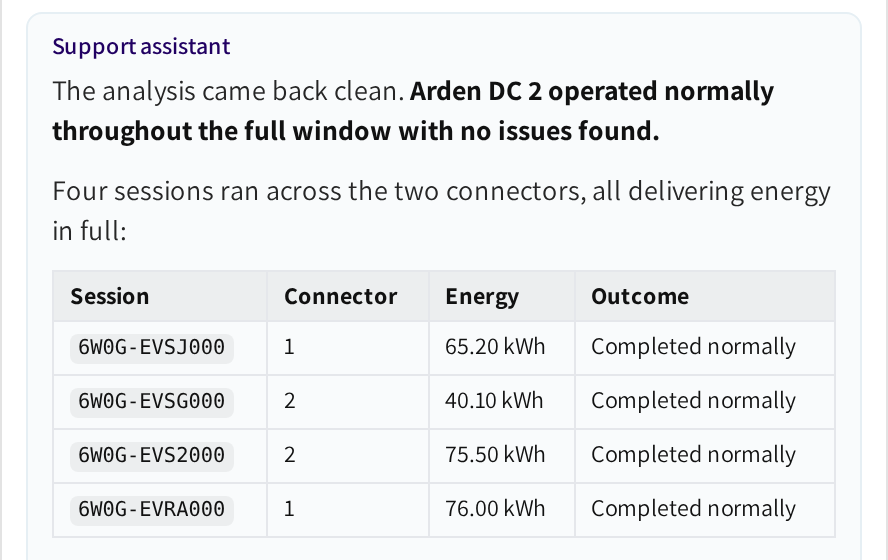
When the analysis is ready, its finding appears in the conversation by itself. The answer ends with a link that opens the full report.
A session that already has an analysis is answered from it, at no cost. If an analysis does not finish, then the chat says The analysis could not complete. You can retry it from the linked page.
Continue from an analysis
Open in the support chat sits under a session's analysis and under a charger analysis report. It opens the assistant with that analysis already in the conversation. Use it for questions beyond that one session or charger.
See Session Intelligence and Charger analysis for the analyses themselves.
Find an earlier conversation
- Click the conversation title at the top of the chat.
- Pick a conversation from the list, or type in Search conversations... to find one.
- Click New conversation to start again with an empty chat.
In the expanded window, the list of your conversations stays open on the left.
Rate an answer
Under each answer are a thumbs up and a thumbs down. A thumbs down opens a box where you can say what was wrong, if you want to.
The team that improves the assistant reads these ratings.
Reach a person
Click Contact support under the message box. The chat then shows the support team's email address, and its phone number when it has one. Hide folds the line away again.
What it cannot do
- It cannot change your setup: no settings, prices, restarts or refunds. Those stay with you on the pages.
- The only thing it starts is an analysis, and only after you say yes.
- It sees exactly what your admin account sees: the same sections, permissions and locations. See Admin permissions.
- You can send up to 50 messages a day. After that, the chat says You have reached today's message limit. Please try again tomorrow.
Common questions
Can other admins read my conversations? No. Other admins of your company cannot open your conversations. The platform team can review them to improve the assistant.
Which language does it answer in? It answers in the language your dashboard is set to, whatever language you write in. Change the dashboard language to change the answers.
Why can the assistant not see one of my chargers? It sees exactly what your admin account sees. If your account is limited to some locations or sections, then the assistant is limited in the same way.
Can it restart a charger or refund a driver for me? No. It looks things up, explains and starts an analysis when you ask. Everything that changes your setup or moves money stays on the pages.
Does asking about the same session twice cost two analyses? No. A session that already has an analysis is answered from it, without using a run.
Updated 23 days ago