
OCPP toolkit
Send commands straight to one of your chargers: unlock a stuck cable, restart the charger, take a plug out of service, read or change its settings, and more.
The Toolkit sends commands straight to one charger, so you can fix a problem without anyone at the site. Use it to unlock a stuck cable, restart a charger or take one plug out of service.
At a glance
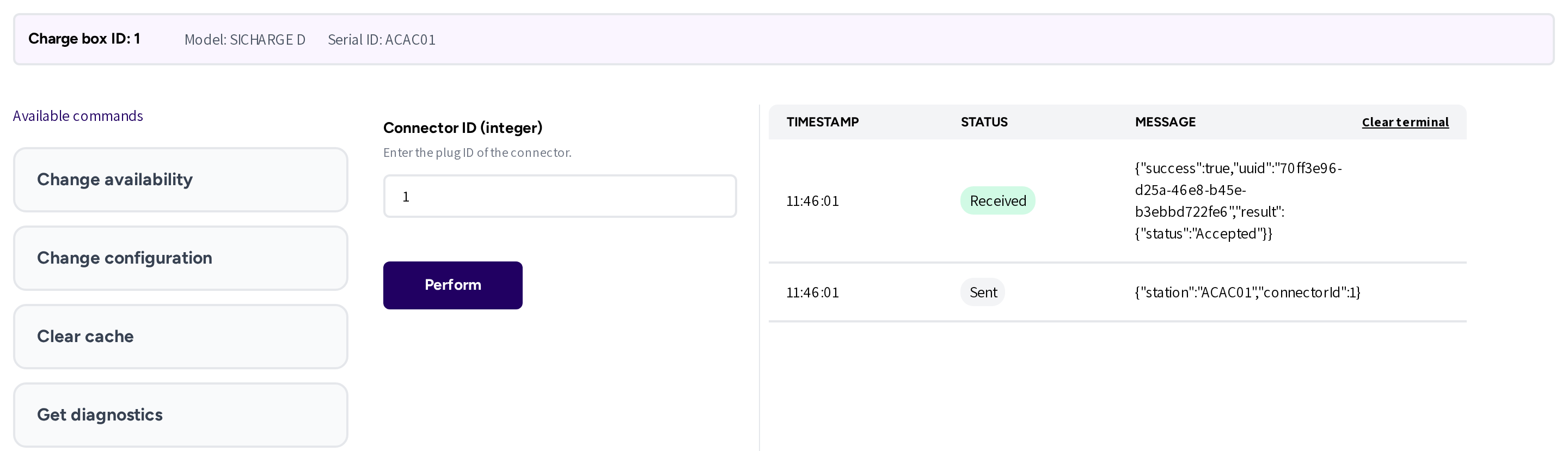
- Charge box ID, Model and Serial ID: the charger the toolkit is connected to.
- Available commands: the commands you can send. The open one shows what it does.
- The form in the middle: what the command needs, such as the connector, and Perform to send it.
- The log on the right: every command with its Timestamp, its Status and the charger's reply under Message.
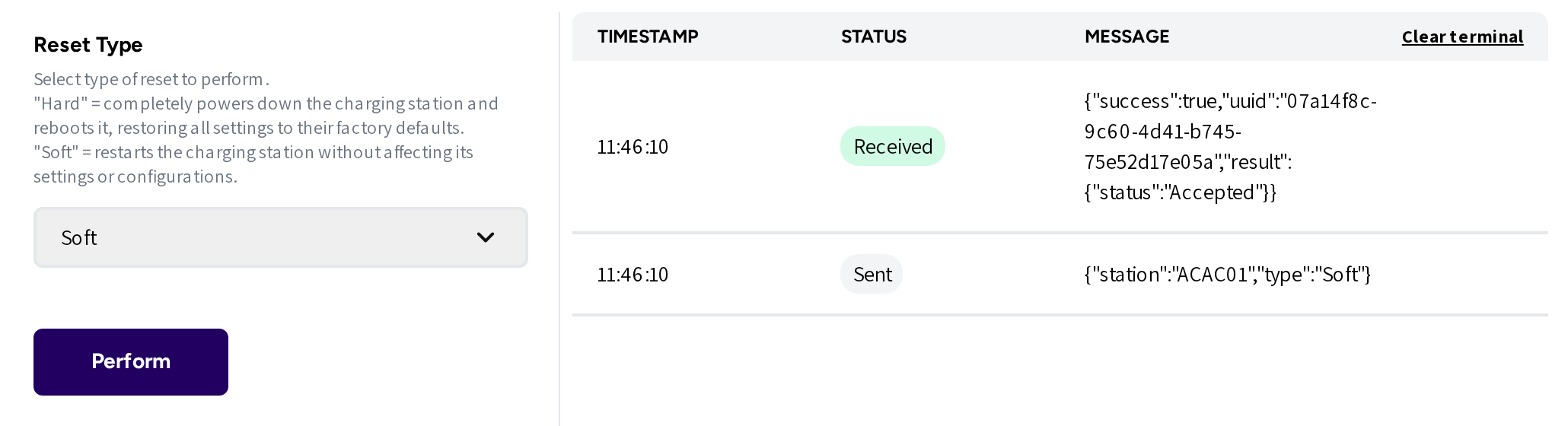
- Reset Type: Soft or Hard, with what each one does.
- Sent and Received: your command went out, and the charger answered. Accepted in the reply means the charger took the command.
- Clear terminal: empties the log.
Which command do I need?
| Situation | Command |
|---|---|
| A driver's cable is stuck in the charger | Unlock connector |
| The charger misbehaves and needs a restart | Reset |
| One plug is faulty, the others work | Change availability |
| A driver at the charger cannot start a charge | Remote start transaction |
| A session runs that should stop | Remote stop transaction |
| You need to read how the charger is set up | Get configuration |
| You need to change a charger setting | Change configuration |
| You look into an incident and need the charger's own data | Get diagnostics |
| A card or key works in the app but the charger refuses it | Clear cache |
Open the toolkit
- Go to Charge points and open the list with the charger, such as Commercial chargers.
- Open the menu at the end of the charger's row.
- Click Toolkit.
The toolkit opens in a new tab, connected to that charger. Each toolkit session is temporary and belongs to that one charger. For another charger, open the toolkit again from its row.
Send a command
- Click the command under Available commands.
- Fill in its fields, such as the connector number.
- Click Perform.
The log shows a Sent row, then a Received row with the charger's reply. The charger must be online to answer.
The commands
| Command | What it does |
|---|---|
| Unlock connector | Releases the cable lock of one connector, by its number. The fix for a stuck cable. |
| Reset | Restarts the charger. Soft restarts its software; Hard powers it down and restarts it. |
| Change availability | Takes a connector out of service or back into service, while the other plugs keep working. |
| Remote start transaction | Starts a session on a connector for a driver, with an ID tag you enter. |
| Remote stop transaction | Stops a running session by its Transaction ID. |
| Get configuration | Reads the charger's current settings, one key or several. |
| Change configuration | Changes one setting on the charger. |
| Get diagnostics | Asks the charger to upload a diagnostics file to an address you enter. |
| Update firmware | Asks the charger to fetch firmware from an address you enter. |
| Clear cache | Empties the charger's own list of accepted cards, so it checks them again. |
| Get local list version | Shows the version of the list of accepted cards stored on the charger. |
| Send local list | Sends a new or updated list of accepted cards to the charger. |
| Trigger message | Asks the charger to send a fresh report, such as its status or meter values. |
| Data transfer | Sends a message defined by the charger's maker, for advanced diagnostics. |
| Clear Charging Profile | Removes a charging profile that was set on the charger. |
To update many chargers of one model, use Firmware management instead of Update firmware.
Things to know
- A Hard reset stops any session running on the charger. Start with Soft.
- Get diagnostics and Update firmware run on the charger's own time. The reply only confirms that the charger took the request.
- If the charger shows Offline in Charge points, then no command reaches it until it is back online.
Common questions
How do I unlock a cable that is stuck in the charger? Open the charger's Toolkit, pick Unlock connector, enter the connector number and click Perform. If the lock stays closed, then follow up with a Reset.
How do I restart a charger remotely? Use Reset in the toolkit and start with Soft. For a plain restart, Reboot in the charger's row menu does the same without the toolkit.
How do I take one plug out of service? Use Change availability on that connector. The charger's other plugs keep working, and you set the plug back when it is repaired.
A driver's card is refused at the charger but works in the app. What now? Use Clear cache, so the charger checks the card again instead of its own list. If that does not help, then check the list with Get local list version.
Why does the charger not answer my command? The charger must be online. If it shows Offline in the charger list, then the command cannot reach it until the connection is back.
Updated 24 days ago