
Fleet sessions
The second tab of the Sessions section, showing the same sessions through a fleet lens: driver, company, team, vehicle, odometer and state of charge instead of the general columns, with fleet filters, a fleet export and a live map of every vehicle charging right now.
Fleet sessions is a tab in the Sessions section, next to All sessions. It shows only sessions that belong to a fleet team or a member discount, and it swaps the general column set for the fields a fleet manager actually needs: who drove, which company and team they belong to, which vehicle, and how full the battery got.
NoticeFleet sessions appears only when the Fleet module is enabled for your operator and your admin account has fleet access. If you manage a fleet and do not see the tab, contact support.
Finding the tab
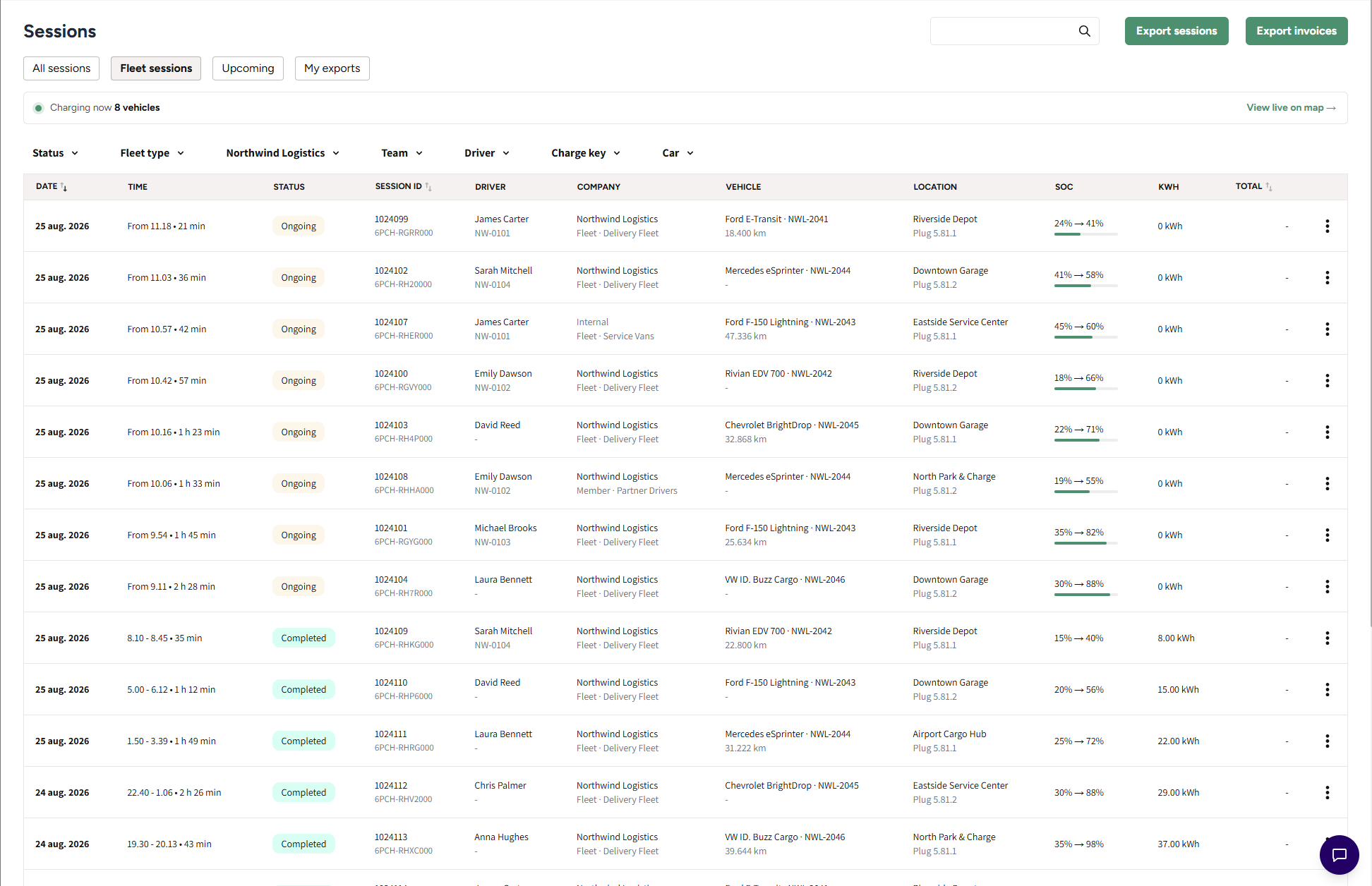
Open Sessions. The tabs across the top are All sessions, Fleet sessions, Upcoming, and, depending on your setup, Failed payments and My exports. Fleet sessions is not a separate record of anything: it is the same data as All sessions, filtered to fleet charging and presented differently.
What the list shows
The first four columns match All sessions exactly, so a session you found in one tab looks the same in the other. The rest are grouped, with a second line under each value:
| Column | First line | Second line |
|---|---|---|
| Date | The date the session started | |
| Time | Start and stop time, or the running duration | |
| Status | The session status | |
| Session ID | The session's ID | |
| Driver | Driver name, or their email when no name is set | The charge key used |
| Company | The fleet company, or Internal for your own fleet | The team, or the discount type and name |
| Vehicle | Car and number plate | Odometer reading in km |
| Location | The location name | The plug ID |
| SoC | Start and end state of charge, for example 29% → 77% | |
| Charging details | Energy delivered | |
| Total | Session cost and payment status |
A dash means the vehicle or the driver did not report that value. State of charge and odometer depend on the car sending them, which many AC sessions never do, so blanks there are normal and not a fault.
Sessions still in progress carry a green progress bar under the state of charge, filled to the current level. The list refreshes those rows on its own while you watch, so a running session's time, energy, cost and battery level stay current without reloading the page.
Admins who manage more than one operator see one difference in the Company column: an internal fleet row carries the operator's own name instead of the word Internal, since "Internal" on its own would not say whose fleet it was. External rows always show the fleet company name.
Filtering the list
The filter row above the table is fleet-specific:
- Status: the session status, as in All sessions.
- Fleet type: Internal (your own fleet) or External (a customer's fleet company). Shown only to admins who may see external fleets.
- Fleet company: searchable list of the fleet companies you manage. Shown only to admins who may see external fleets.
- Team: a fleet team.
- Driver: a specific driver.
- Charge key: a specific key.
- Car: a specific vehicle.
Filters stay in the page address, so a filtered view can be bookmarked or pasted into a support ticket and it opens the same way for a colleague.
Admins without external fleet access do not see external sessions here, and the Fleet type and Fleet company filters are not shown to them.
Exporting fleet charging
The Export window has its own fleet section, separate from the filters on the table. Tick Filter by fleet and four choices appear:
- The fleet to cover: All fleet, Internal, or External. External is offered only to admins who may see external fleets.
- Fleet company: one or more customer companies. It disappears when you pick Internal, which has no fleet company.
- Team: one or more fleet teams.
- Member discount: one or more discounts.
ImportantThe export does not inherit what you filtered the table to. Filter by fleet is a separate, opt-in choice: leave the box unticked and the export covers the whole date range, whichever tab you started from.
The live map
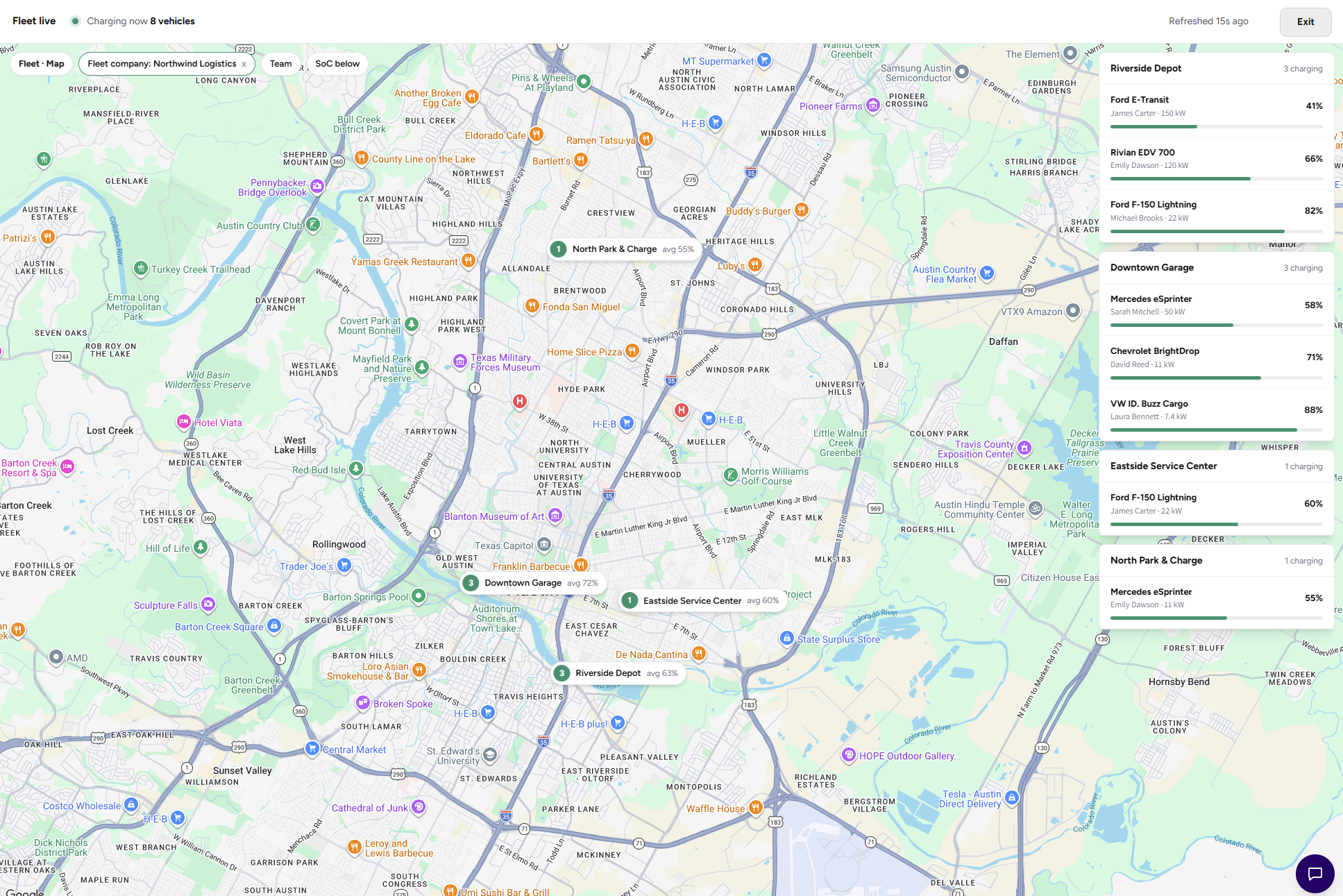
Above the table sits a status bar reading Charging now N vehicles, with a green dot while at least one fleet vehicle is charging and No vehicles charging when none are. Next to it, View live on map opens a full screen map of every location with fleet charging in progress. Its own top bar reads Fleet · Map · Live.
The map has:
- Numbered markers per location, each showing how many vehicles are charging there and the location's average state of charge.
- A vehicle panel down the right side, one card per location: the location name, how many vehicles are charging, and a row per vehicle with car and plate, driver and current power draw, a state of charge bar, and a link into the session's own detail page. Clicking a marker scrolls to that location's panel and highlights it.
- From a location's panel, clicking the location name pans the map to that site, and the small icon next to it opens the location's charge points in a new tab, so the map keeps its place while you go and look at the hardware.
- Filter chips for Fleet company, Team, and SoC below, which narrows the map to vehicles under 50%, 30% or 20% so you can see at a glance who still needs time.
- A Refreshed Xs ago indicator. The map reloads itself every 30 seconds while it is open.
When nothing is charging anywhere, the map opens centered on your own locations rather than on an empty world view, and stays there while it keeps polling.
On a phone the map keeps most of the screen. The location cards become a strip along the bottom: swipe it to move from site to site and the map follows. Tapping a marker brings up its card. A card lists two vehicles, with a line such as 3 more vehicles that opens the rest, and Show all locations brings every site back into view.
Press Escape or click Exit to return to the table, which stays exactly where you left it.
Leaving the map open on a wall monitor
Adding ?view=map to the Fleet sessions address opens the map immediately instead of the table, which is what to bookmark for a control room screen. The map also keeps you signed in while it is open, so an unattended monitor does not fall back to the login page overnight.
Jumping here from the Fleet section
Every session count in the Fleet section is a link. Clicking the count on a team, driver, charge key, car or fleet company opens Fleet sessions already filtered to that entity, so you never have to rebuild the filter by hand.
Common questions
Why is the Fleet sessions tab missing?
It needs the Fleet module enabled for your operator and fleet access on your admin account. Contact support if you manage a fleet and cannot see it.
Why is the state of charge column empty for most of my sessions?
The vehicle has to report it. Many AC sessions never send a state of charge, so the column shows a dash. It is not a charger fault.
A session is missing from Fleet sessions but appears in All sessions. Why?
Only sessions linked to a fleet team or a member discount appear here. A driver's private session on the same charger, paid with their own card, belongs in All sessions only.
Can I see other operators' fleet customers?
No. External fleet sessions are only visible to admins with external fleet access, and the Fleet type and Fleet company filters are hidden from everyone else.
Does the export follow my fleet filters?
No. Tick Filter by fleet in the Export window and set the fleet, company, team or discount there; the table's own filters are never carried across.
Why does an internal row show an operator name instead of "Internal"?
Because your account covers more than one operator. In that case the word "Internal" would not say whose fleet it was, so the operator's name is shown instead.
How do I get a live view for a screen in the office?
Open the map with View live on map, then bookmark the address with ?view=map on the end. It reopens straight into the map and refreshes every 30 seconds.
Updated 27 days ago