
Fleet setup guide
Set up a fleet from scratch: add charge keys, cars and drivers, group them in a team or a member discount, and add the customer companies whose fleets charge on your network.
Fleet runs company vehicles on your network: their charge keys, their vans, their drivers and who pays. This guide takes you from an empty fleet to one that charges, step by step.
At a glance
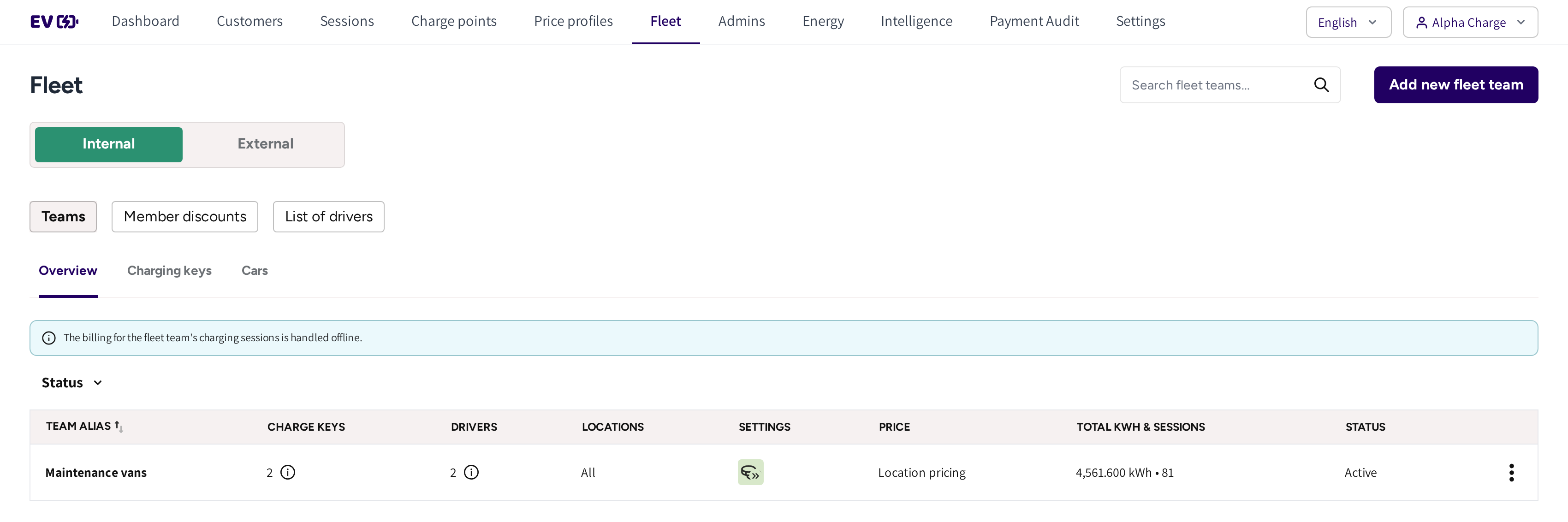
- Internal and External: your own fleet, or the fleets of customer companies.
- Teams, Member discounts and List of drivers: the tabs of the section. External adds List of companies.
- Overview, Charging keys and Cars: the teams, the keys and the vans.
- Add new fleet team: the button on the right changes with the tab you are on.
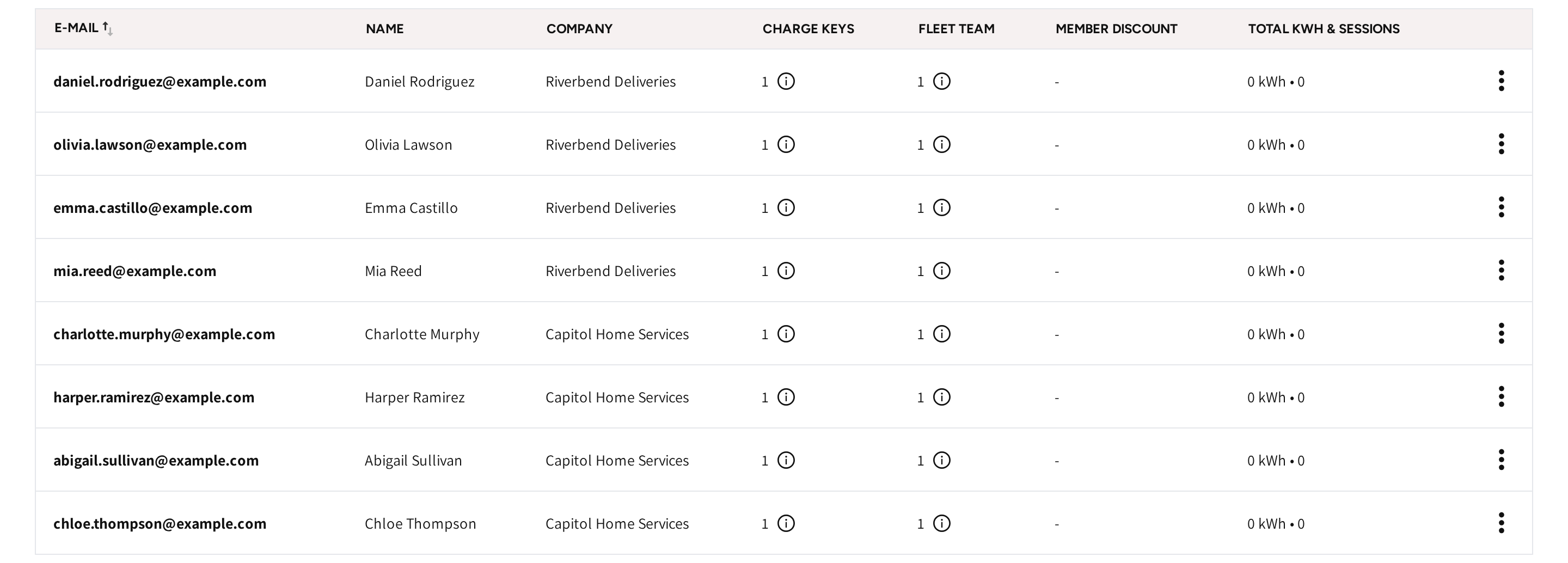
- The drivers of a finished setup: each with a Charge key, a team and their charging so far.
Before you start
Decide whose fleet it is. If the vans belong to your own organization, then work under Internal. If they belong to a customer company, then add the company first under External, see step 5, and pick it in each form.
1. Add charge keys
- Go to Fleet, pick Internal or External, and open Teams → Charging keys.
- Click Add new charge key.
- If you are under External, then pick the Company.
- Enter the Charge key: the tag of an RFID card, or the MAC address of the vehicle's charging port.
- Under Additional settings, switch on Add Car or Add Drivers if the car or the drivers already exist.
- Click Save.
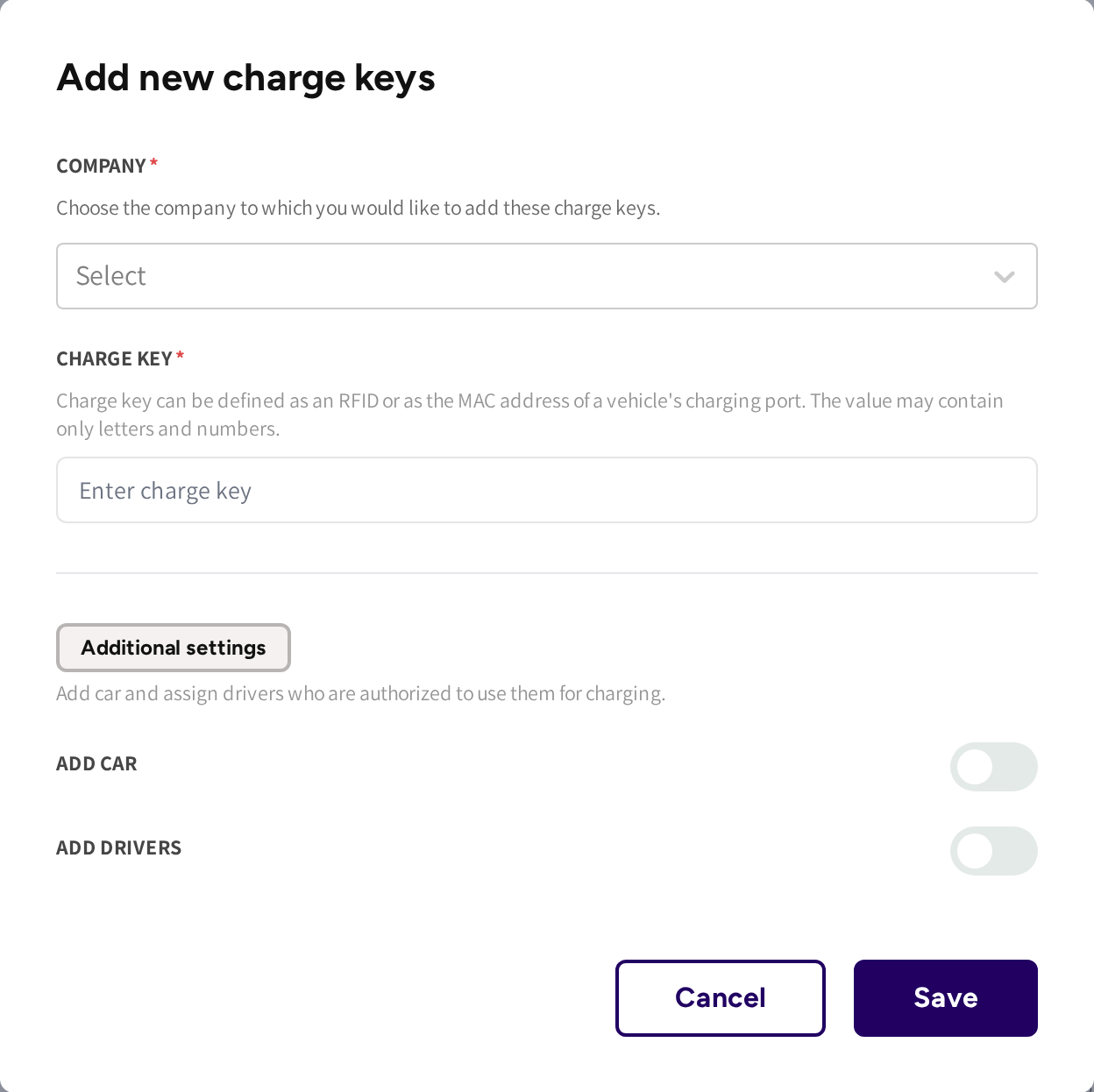
The key value may contain only letters and numbers. A driver who holds the key can also pick it in the app and start from the phone.
2. Add cars
- Open Teams → Cars and click Add new car.
- Enter the car's alias, its plate number and its VIN.
- Click Save.
Then link the car to its keys from the key's Edit charge keys window, under Added car.
3. Add drivers
- Open List of drivers and click Add new driver.
- If you are under External, then pick the Company.
- Type the driver's email and press Enter; add more drivers the same way.
- Switch on Add Charge Keys or Add member discount and pick them.
- Click Save.
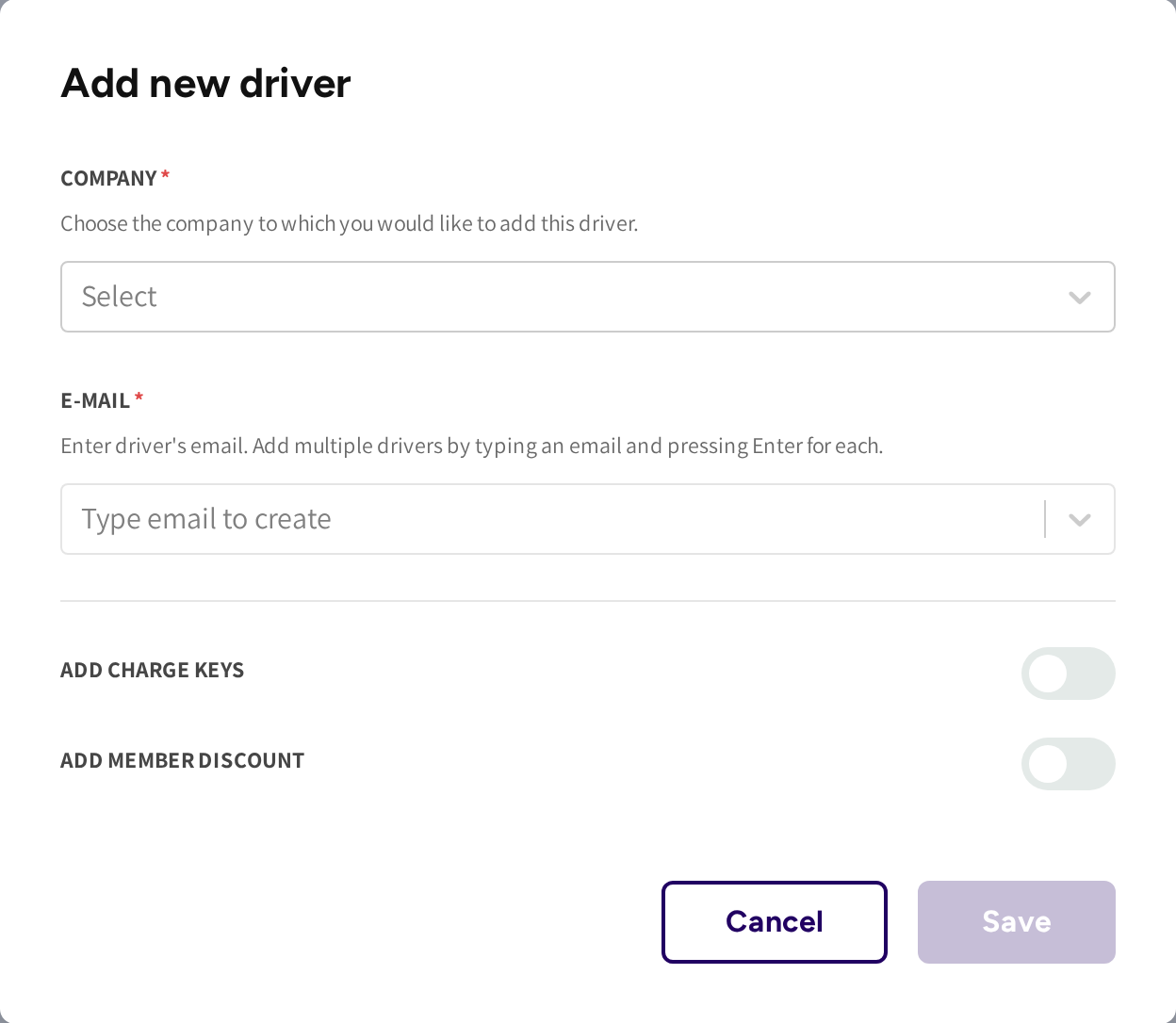
Each driver gets an invitation email with a code to redeem in the app. Until then the driver shows as pending in the lists, and the row menu offers Resend invitation code.
4. Decide who pays: a team or a member discount
| Team | Discount | |
|---|---|---|
| Built from | Charge keys | Drivers |
| Who pays | The company, invoiced by you or from its prepaid balance | The driver, in the app |
| Spending limit per key | Yes | No |
A Fleet team is billed to the company, and a Member discount is paid by the driver in the app.
- Open Teams and click Add new fleet team, or open Member discounts and click Add new member discount.
- Work through the steps: the keys or drivers, the locations, the pricing and the settings.
- Click Save on the last step.
Teams and member discounts are explained step by step in Teams & Member discounts.
5. Add a customer company
- Go to Fleet → External → List of companies and click Add new company.
- Enter the Company name and the company's Email.
- Under Billing options, pick Offline or Prepaid.
- Click Save.
If prepaid billing is part of your account, then Billing options is shown; otherwise every company is billed offline. The company's own administrator can then get a fleet manager login, see Internal & External fleets.
6. Check the setup
- Every driver in List of drivers has a key or a member discount, and none is still pending.
- Every key in Charging keys has its car and its drivers, and reads Active.
- Each team or discount lists the locations and the price you agreed.
Then let one driver charge once. The session count in every list opens Fleet sessions for that row, see Fleet sessions.
Common questions
In what order should I set things up? Keys first, then cars and drivers, then the team or member discount that ties them together. A team needs keys to exist, and a member discount needs drivers.
The driver never got the invitation. What now? Check the email address in List of drivers and click Resend invitation code in the row menu. You can also look the email up in Email delivery.
Do I need both a team and a member discount? No. Use a team when the company pays. Use a member discount when drivers pay in the app at a special price.
How do I cap what one employee can charge? Put their key in a team with a Spending limit: a fixed amount per key per day, week or month. The key stops at the limit and works again after the reset.
Offline or prepaid for a new customer company? Choose offline if you invoice after the fact. Choose Prepaid billing if you want the money before their drivers charge, see Fleet Wallet. You can change it later on Edit company.
Updated 24 days ago