
Language and your profile
Pick the language your dashboard shows you, and keep your own name, email and password current on the Profile page.
Your language and your own account details belong to your login, not to your company. This page shows where to change the language and how to keep your name, email and password current.
At a glance
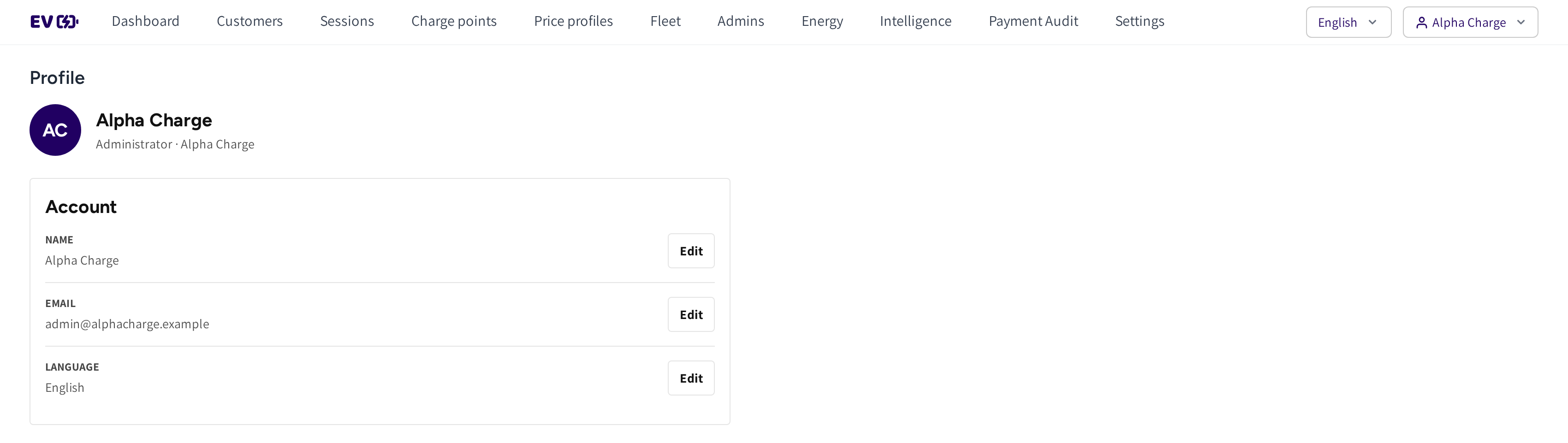
- The language switcher, English here, and your user menu in the top right.
- Profile: your name, your role and your company.
- Account: your Name, the Email you sign in with and your Language, each with Edit.

- Security: your Password, shown masked, with Change.
Change the language
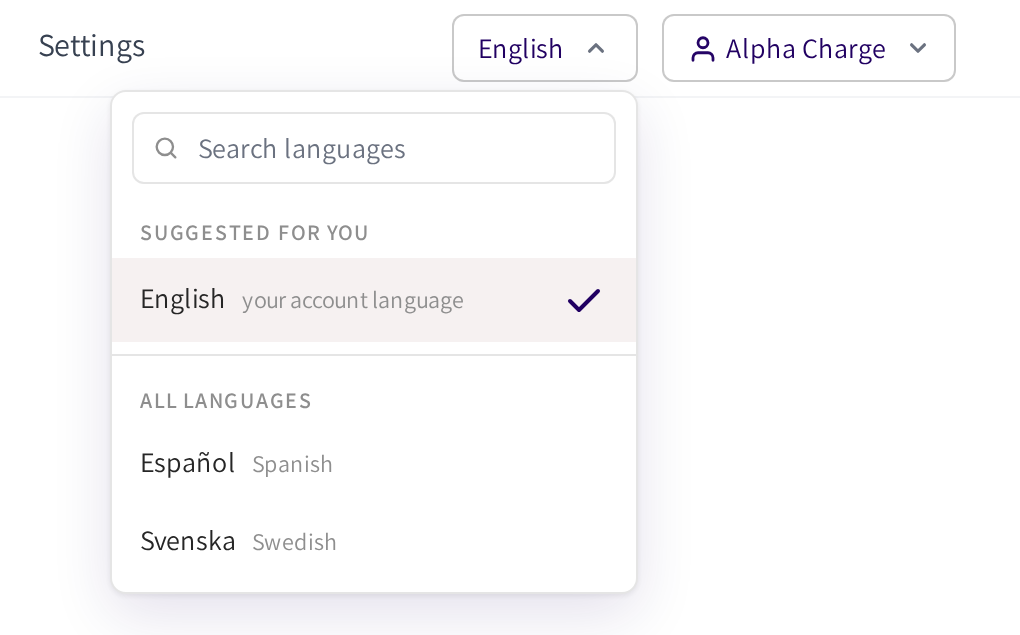
- Click the language switcher in the top bar.
- Click the language you want, or type its name under Search languages.
The page redraws at once, dates and calendars included, and calendars start the week on Monday in every language. Suggested for you holds your account language, and All languages holds the others your company offers.
If your company offers one language only, then the switcher is not shown.
Open your profile
Open the user menu in the top right and click Profile. If your admin account may edit account information, then Profile is shown in that menu.
Edit a row
- Click Edit at the end of the row, or Change on Password.
- Make the change in the row that opens.
- Click Save, or Cancel to drop it.
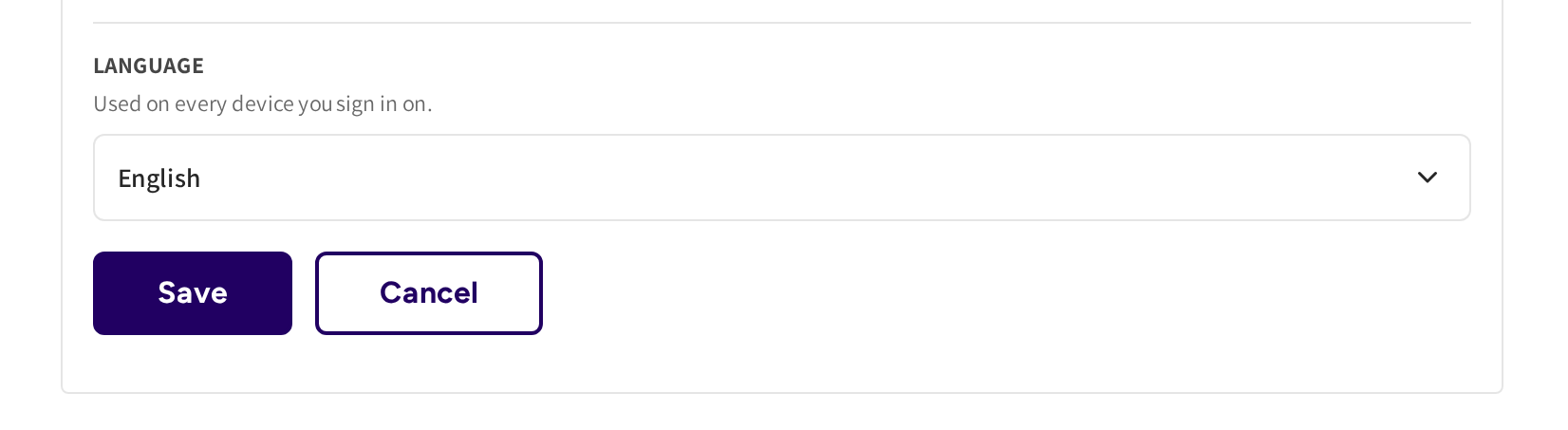
Saved. appears next to the buttons when the change goes through. The Language row reads Used on every device you sign in on., because the choice is saved on your account.
If your email address is not confirmed yet, then the Email row says so and offers to send the confirmation email again.
Common questions
How do I change the language of my dashboard? Use the language switcher in the top bar, or click Edit on the Language row of your Profile. The choice is saved on your account and follows you to every device.
Can I set the language for my whole team? No. Each admin picks their own, so colleagues in one company can work in different languages.
How do I change my password? Open Profile and click Change on the Password row under Security. Enter the new password and click Save.
Where do I change my company's details? On Settings, not on your profile, see Settings.
Why is Profile missing from my user menu? Your admin account may not edit account information. Ask an admin of your account to switch on Edit account information under Settings in your access.
Updated about 1 month ago