
Payment audit
Check every charging session against its invoice and its card charges, find a session by location, refund a driver, collect what is still owed, and release a hold.
Payment Audit shows each charging session next to its invoice and the card charges behind it. Open it when a driver disputes an amount, needs a refund, or a payment did not go through.
At a glance
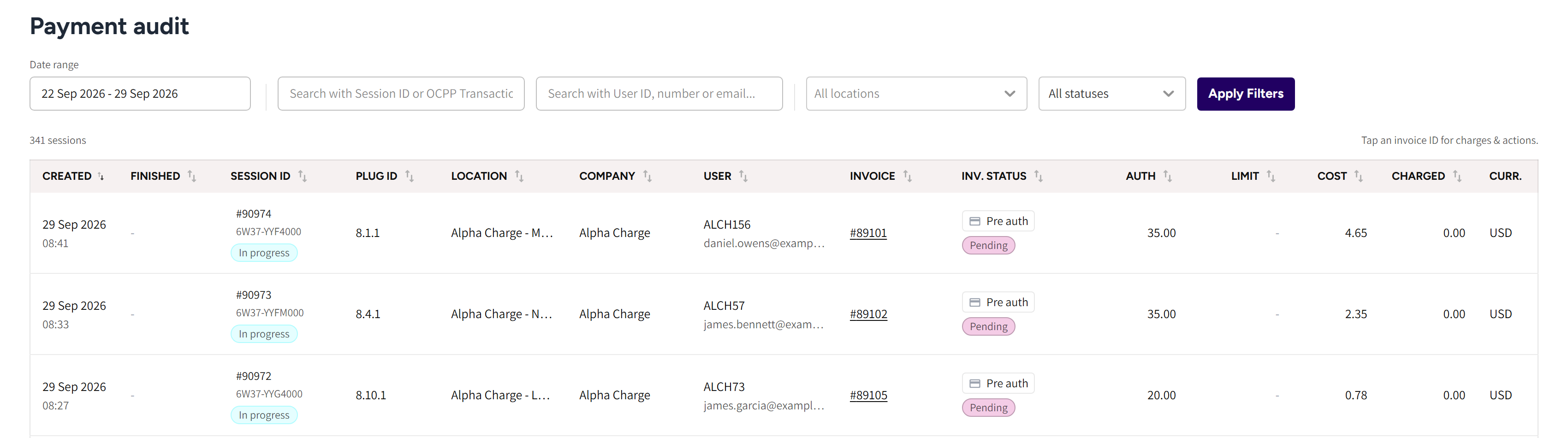
- Date range: the days the list covers, by when the session started.
- The two search boxes: a session ID or OCPP transaction ID, and a customer ID, number or email.
- All locations and All statuses: narrow the list to locations or to one invoice status, then click Apply Filters.
- The session count, and the hint that an invoice number opens its charges.
- Session ID, Plug ID and Location: which session it was and where it ran.
- User: the driver's customer number and email.
- Invoice and Inv. Status: the invoice number, how the session is paid, and the invoice status.
- Auth: the amount held on the driver's card while the session runs.
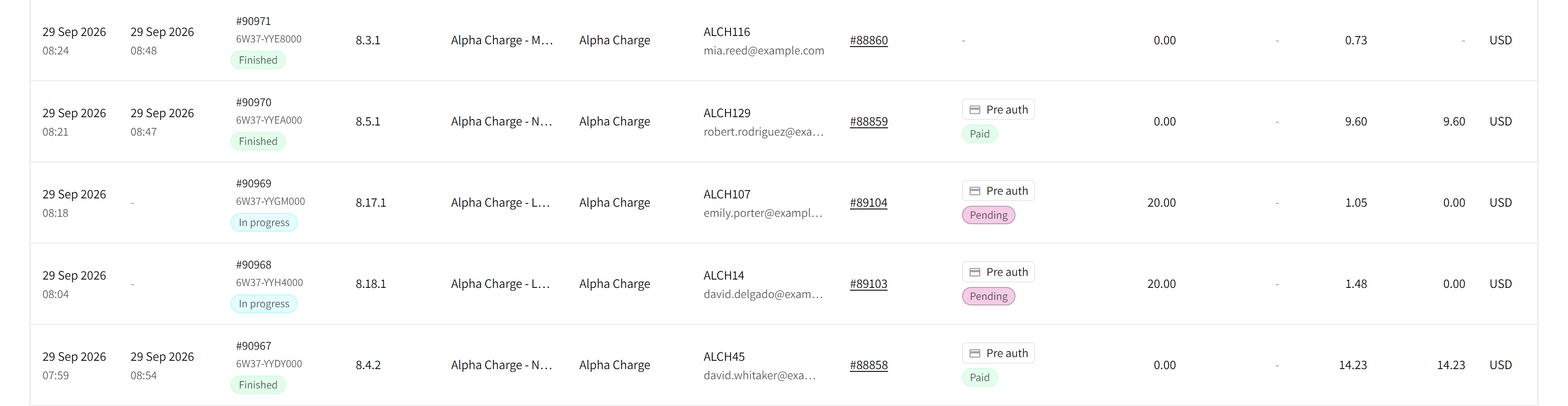
- Finished and Paid: a session that has ended, with its invoice paid.
- Cost and Charged: what the session cost, and what was collected for it. On a paid session the two are equal.
- Charge key: a fleet session, billed to the fleet instead of the driver.
Find a session
- Go to Payment Audit.
- Pick the days under Date range, up to 182 days at a time.
- Enter a session ID, or the driver's customer number or email, in the search boxes.
- Pick locations or an invoice status if you need to narrow the list.
- Click Apply Filters.
The page opens on the last 7 days. Click a column heading with arrows to sort by it.
The list covers the sessions on your commercial and private chargers, not those on home and hybrid chargers.
If a session was paid with a fleet Charge key, then Inv. Status and Charged show a dash, because the fleet is billed as a whole.
Read a row
In a healthy list, Charged equals the invoice amount once a session has finished.
While a card session runs, Auth shows the Pre-authorization held on the card and Inv. Status reads Pending. At the end the real cost is collected and the rest of the hold goes back to the driver.
A row that needs a look is marked:
| Mark | What it means for you |
|---|---|
| Red bar on the left | A charge has an Unknown status: the payment provider never gave a final answer. Support resolves it. |
| Amber bar on the left | What was collected differs from the invoice amount, for example after a partial refund. Open the invoice to see why. |
| Tinted row, no bar | The session finished with a cost but has no invoice yet. Click Settle in the row. |
The Invoice column can also show:
- # and a number: the invoice. Click it to open the invoice window.
- A warning sign after the number: the session points to another invoice than the one found for it. Mention it to support.
- A red !: the invoice has a charge with an unknown status.
- A blue i: a debt was recorded on the driver's wallet for this invoice. Hover it to see the amount.
- Outstanding balance: a session started offline with a key, recorded as a debt on the driver's wallet.
- Charge key: a fleet session that has no invoice yet.
Invoice statuses
| Status | What it means for you |
|---|---|
| Pending | The session is running or the payment is in progress. |
| Paid | The full invoice amount was collected. |
| Under paid | Less than the invoice amount was collected, for example when the hold was smaller than the cost. |
| Processing surcharge | The rest of an under paid invoice is being collected. |
| Failed | The payment was refused. |
| Processing refund | A refund is on its way to the payment provider. |
| Refunded | Everything collected was refunded. |
| Refunded partially | Part of what was collected was refunded. |
| Refund failed | The payment provider rejected a refund. |
| Cancelled | The invoice was cancelled, for example because the session had no cost. |
| Unknown | The payment provider's final answer never arrived. |
Open an invoice
Click the invoice number in a row. The invoice window opens.
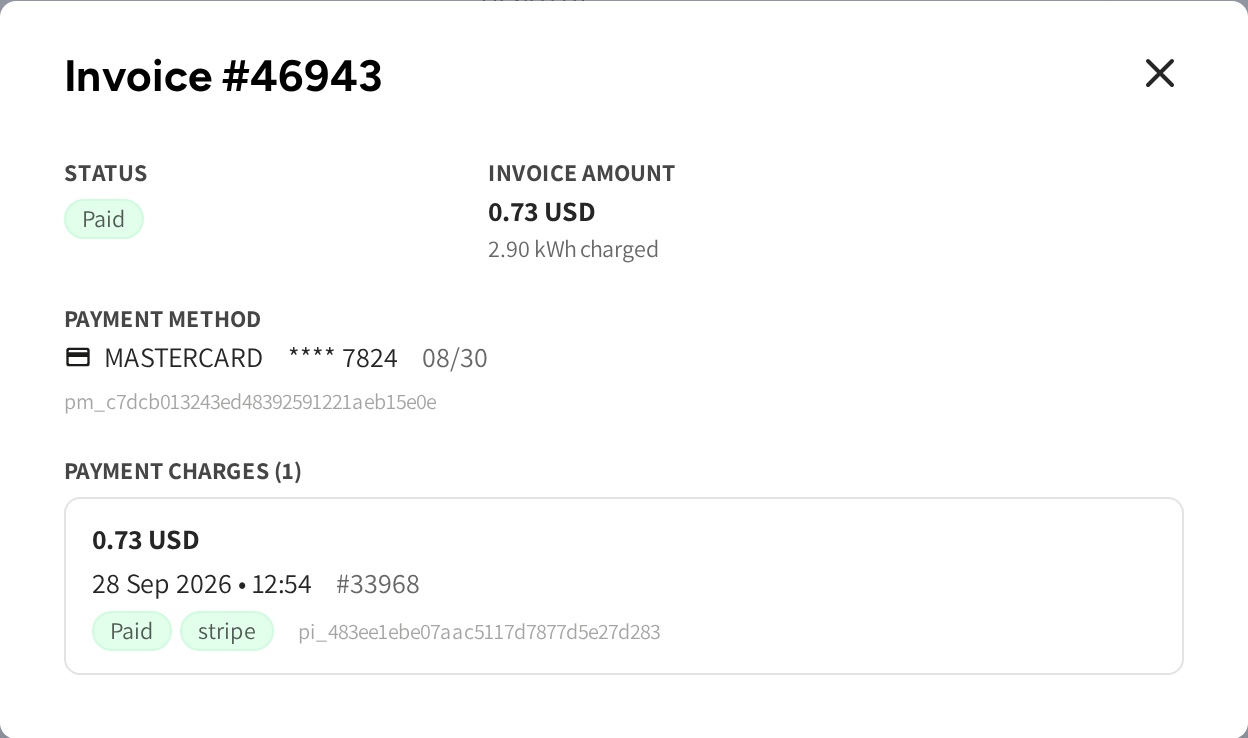
- Status and Invoice amount: the invoice status, the amount, and the energy charged.
- Payment method: the card brand, the last four digits and the expiry date.
- Payment charges: one card per charge, with its amount, date, number, status and payment provider.
If a charge was refunded, then its card lists the refunds, with Refunded: and Remaining:. If a debt was recorded on the driver's wallet, then the window also shows Outstanding balance history.
| Charge status | What it means for you |
|---|---|
| Authorized | An amount is held on the card and not collected yet. |
| Paid or Approved | The money was collected. |
| Refunded | The charge was refunded in full or in part. |
| Credited to wallet | The amount went back to the driver's wallet instead of the card. |
| Released | The hold was given back to the driver's card. |
| Transferred | The hold moved to a new session the driver started. |
| Failed or Rejected | The payment provider refused the charge, and no money moved. |
| Unknown | The payment provider never gave a final answer. |
Release a hold that stayed on a card
Normally the rest of a hold goes back by itself when the session ends. If a charge still shows Authorized after the session finished and its cost was collected, then you can release it.
- Open the invoice and find the charge with Authorized.
- Click Release.
- Check the amount under Void authorization hold of, then click Confirm release.
The charge then shows Released, and the money goes back to the driver's card, usually within a few days. A release cannot be undone. If the session's cost was never collected, then click Capture instead of releasing the hold.
Refund a driver
You can refund a charge in full or in part from the invoice window.
- Open the invoice and find the charge with Paid.
- Click Refund.
- Enter the amount to refund, or click Max to refund all of it.
- Click Review.
- Check the amount in the confirmation, then click Confirm refund.
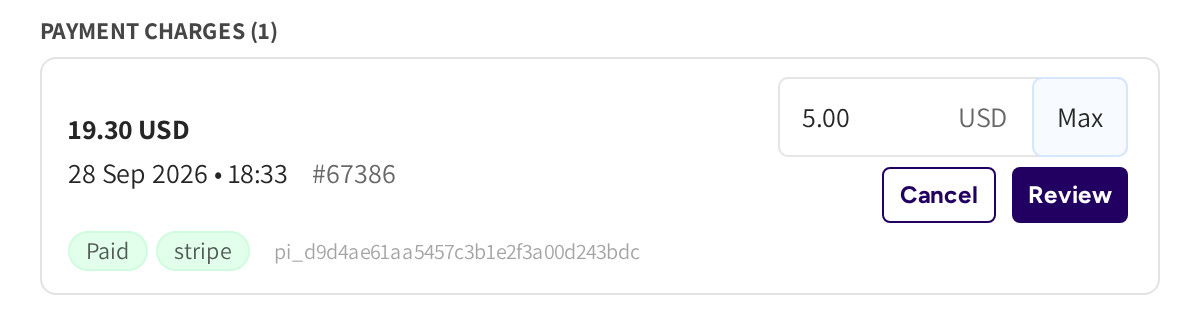
The confirmation names the amount and what is still available to refund, and a refund cannot be undone. The refund then shows under the charge in Refunds, with Refunded: and Remaining:.
While Remaining: shows an amount, you can refund more of the charge later. The invoice then reads Refunded partially, or Refunded once everything was refunded.
If a refund went to the driver's wallet and you paid it back yourself by bank transfer, then click Mark refunded to user. See Wallet.
Capture a hold after the session
If a session has finished and its charge still shows Authorized, then the cost was not collected yet. You collect it from the hold with Capture.
- Open the invoice and find the charge with Authorized.
- Click Capture.
- Check the amount, which is filled in with what the invoice still needs, up to the hold.
- Click Review.
- Click Confirm capture.
The confirmation reads Capture, the amount, and from authorized hold of with the size of the hold. The money is then charged to the driver's card, and this cannot be undone.
Settle an under paid invoice
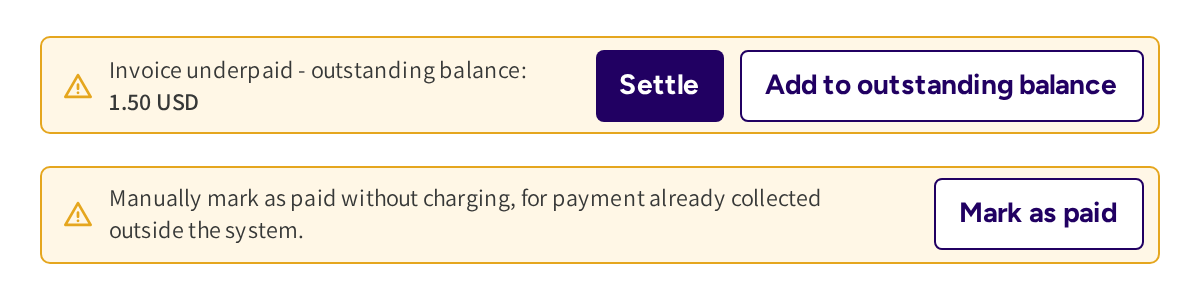
If less was collected than the invoice amount, then the invoice window opens with Invoice underpaid - outstanding balance: and the amount still owed.
- Open the invoice.
- Click Settle.
- Check the amount after Collect outstanding, then click Confirm settle.
The amount is then charged to the payment method the driver has on file, and this cannot be undone.
If you do not want to charge the card again, then click Add to outstanding balance and Confirm. The amount is recorded as an outstanding balance on the driver's wallet and listed under Outstanding balance history.
If the driver already paid you another way, then click Mark as paid and Confirm. The invoice status changes to Paid, and no charge, refund or amount change happens.
Settle a session without an invoice
If a finished session has a cost but no invoice, then its row shows Settle in the Invoice column.
- Click Settle in the row.
- Check the session, the driver and the Cost in the window.
- Click Charge payment method to create the invoice and charge the driver's card.
To record the cost as a debt on the driver's wallet instead, click Add to outstanding balance.
Clear an outstanding balance
If a debt is recorded on the driver's wallet for an invoice, then the invoice window lists it under Outstanding balance history, marked Outstanding.
- Open the invoice.
- Click Clear next to the debt.
- Check the amount in the confirmation, then click Confirm.
The debt is cleared from the driver's wallet without a payment, so the driver no longer owes it.
Common questions
A driver says money is still blocked on their card. What do I do? Search the session by the driver's email and open the invoice. If a charge still shows Authorized and the cost was collected, then click Release. If the cost was not collected yet, then click Capture to take it from the hold.
How do I refund a driver? Open the invoice, click Refund on the charge, and enter the amount or click Max. Click Review, then Confirm refund. The refund shows under the charge, and the invoice reads Refunded or Refunded partially.
Why does a row have an amber bar after a refund? The bar marks rows where what was collected differs from the invoice amount. After a partial refund that is the case, so the bar is expected.
Why does a running session show an amount under Auth? That is the amount held on the driver's card while they charge. When the session ends, the real cost is collected and the rest goes back to the driver.
An admin cannot find Payment Audit in their menu. Why? The admin needs the Payment Audit permission, see Admins. If the permission is not offered, then Payment Audit is not part of your account.
Updated 23 days ago