
Firmware management
See which firmware your chargers run per model, keep firmware files in the library and roll out updates to chosen chargers, at once or inside a night window.
Firmware on Charge points shows which firmware your chargers run, model by model. From there you keep firmware files in the library and roll out updates to the chargers you choose.
At a glance
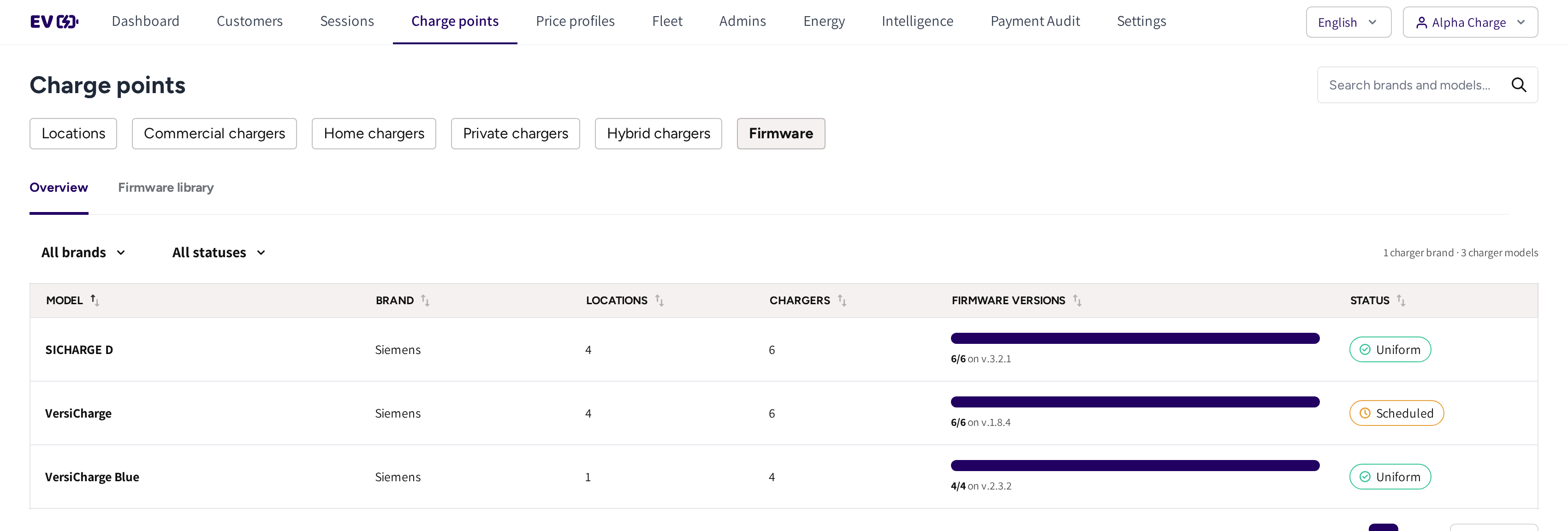
- Overview and Firmware library: the two tabs of Firmware.
- All brands and All statuses: the filters of the list.
- Model, Brand, Locations and Chargers: each charger model in your network and where it runs.
- Firmware versions: the versions the chargers of the model report, as a bar.
- Status: whether the model's chargers agree, see the table below.
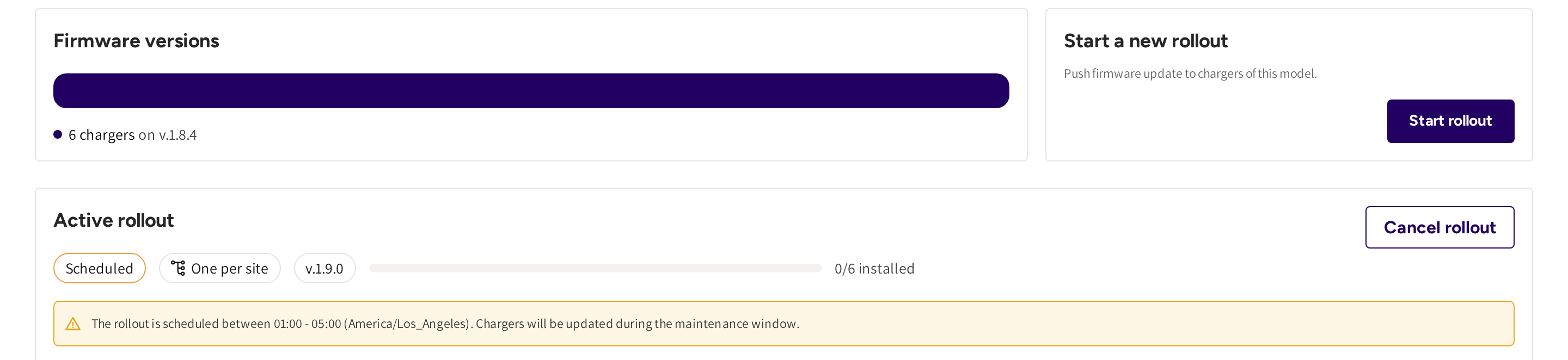
- Firmware versions: how many chargers of the model run each version.
- Start a new rollout and Start rollout: push an update to chargers of this model.
- Active rollout: the rollout under way, with its status, strategy, target version and how many chargers have it installed.
- Cancel rollout: stop the rollout.
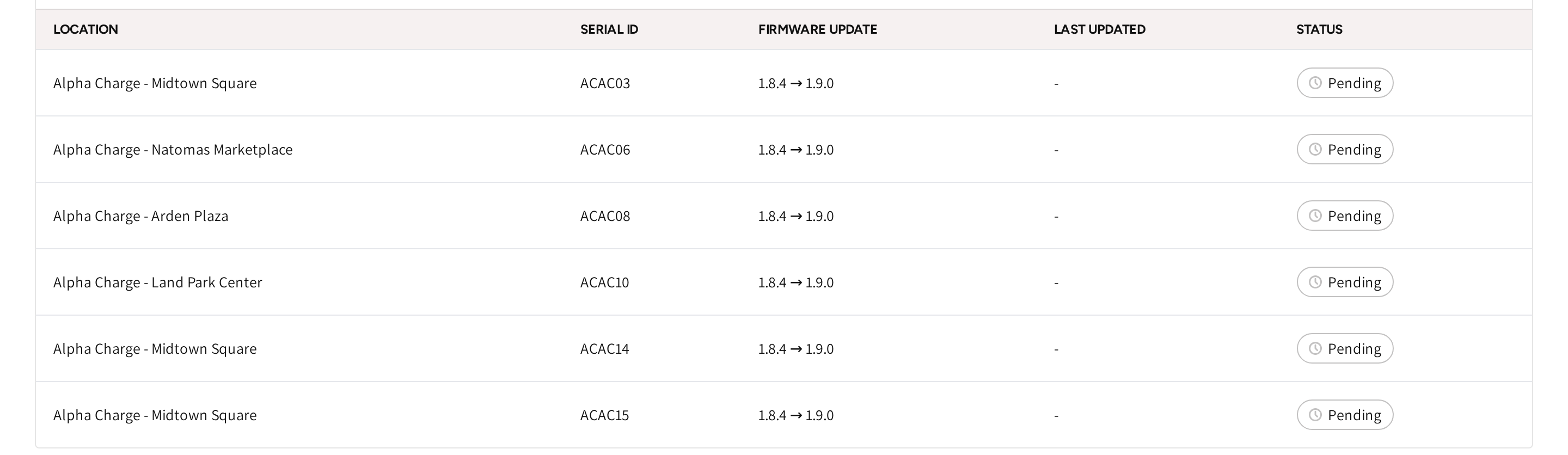
- Location and Serial ID: each charger in the rollout.
- Firmware update: the version it moves from and to.
- Last updated and Status: the charger's progress.
Model statuses
| Status | What it means for you |
|---|---|
| Uniform | Every charger of the model runs the same version. |
| Mixed | The chargers of the model run different versions. |
| Updating | A rollout is running for the model. |
| Scheduled | A rollout is created and waits for its update window. |
| Unknown | The chargers have not reported a version yet. |
Click a model in the list to open its page. Firmware distribution there lists each version with its locations, chargers and share. Latest marks the newest version your chargers run.
Add a firmware file
- Open the Firmware library tab.
- Pick the charger model on the left.
- Click Add firmware file.
- Enter the Version string, for example 1.9.0.
- Click Choose file and pick the Firmware file.
- Add Release notes if you like.
- Click Save.

Each version shows its notes, how many chargers run it and its SHA-256 checksum. It also shows when and by whom it was uploaded, and its status. Active means chargers run the version, and Draft means none do yet.
Files belong to one model, so a rollout can only use versions of that model. To remove a version, open its menu and click Delete. You cannot delete a version while a rollout that uses it is running.
Start a rollout
- Open the model on the Overview tab and click Start rollout.
- Under Targets, pick the Target firmware version and tick the chargers.
- Under Strategy, pick how the update moves through your network.
- Under Failure handling, pick what happens if a charger fails.
- Under Schedule, pick Immediately or Restrict to a scheduled time window.
- Under Summary, check the setup and tick the confirmation.
- Click Create rollout job.
The rollout then shows under Active rollout on the model's page. A charger that is already in another rollout of the model shows In rollout and cannot be ticked.
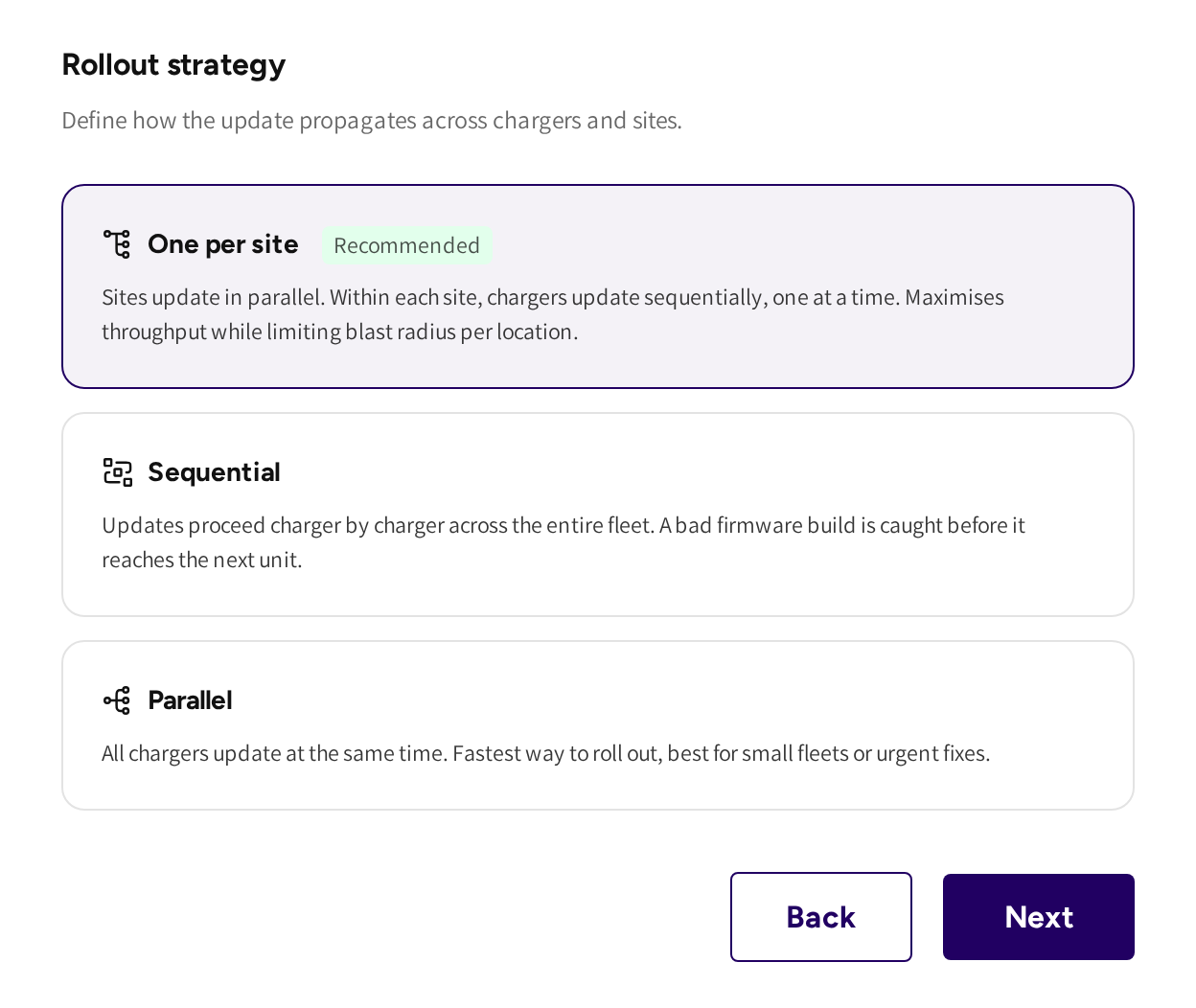
| Strategy | How the update moves |
|---|---|
| One per site | Sites update side by side, one charger at a time at each site. |
| Sequential | One charger at a time across your whole network. |
| Parallel | Every chosen charger at the same time. |
With Skip and continue, a failed charger is skipped and the rest go on. With Halt site on first failure, the other chargers at that site stop, and other sites go on.
Update at night
Pick Restrict to a scheduled time window and enter a Start time and an End time. Times are in your account's time zone, and a window may run past midnight, such as 22:00 to 05:00.
A charger that is updating when the window closes finishes its update. Chargers not reached yet wait for the next window, and the rollout shows Scheduled until its window opens.
Charger statuses in a rollout
| Status | What it means for you |
|---|---|
| Pending | The charger waits for its turn or for the window. |
| Queued | The charger has been sent the update. |
| In progress | The charger downloads or installs the update. |
| Completed | The charger runs the new version. |
| Failed | The download or the installation failed. |
| Cancelled | The rollout was cancelled before the charger was updated. |
| Unknown | The charger stopped reporting progress for too long. |
If you click Cancel rollout, then chargers that have not finished are marked Cancelled.
Common questions
Can I push one firmware file to different charger models? No. Firmware files belong to one charger model, and a rollout only uses versions of that model.
Why can I not tick some chargers in the rollout? They are already in another rollout of the same model and show In rollout.
Can I update chargers at night only? Yes. In the Schedule step, pick Restrict to a scheduled time window and enter the hours, for example 01:00 to 05:00.
What does Mixed mean on a model? The chargers of that model run different firmware versions. Start a rollout to bring them onto one version.
What happens when a charger stops reporting during an update? After a while its status turns Unknown. Check the charger, and include it in a new rollout if needed.
Updated 24 days ago