
Sharing a charger
Invite, resend and revoke the people a home, private or hybrid charger is shared with, in the Manage shared users window.
A home, private or hybrid charger can be shared with other people, who charge on it from their own app. The owner manages that list in the app, and you manage the same list in the Manage shared users window.
At a glance

- Users: how many people a charger is shared with. Hover the information icon to see who they are.
- (pending): a person who has not redeemed their code yet.
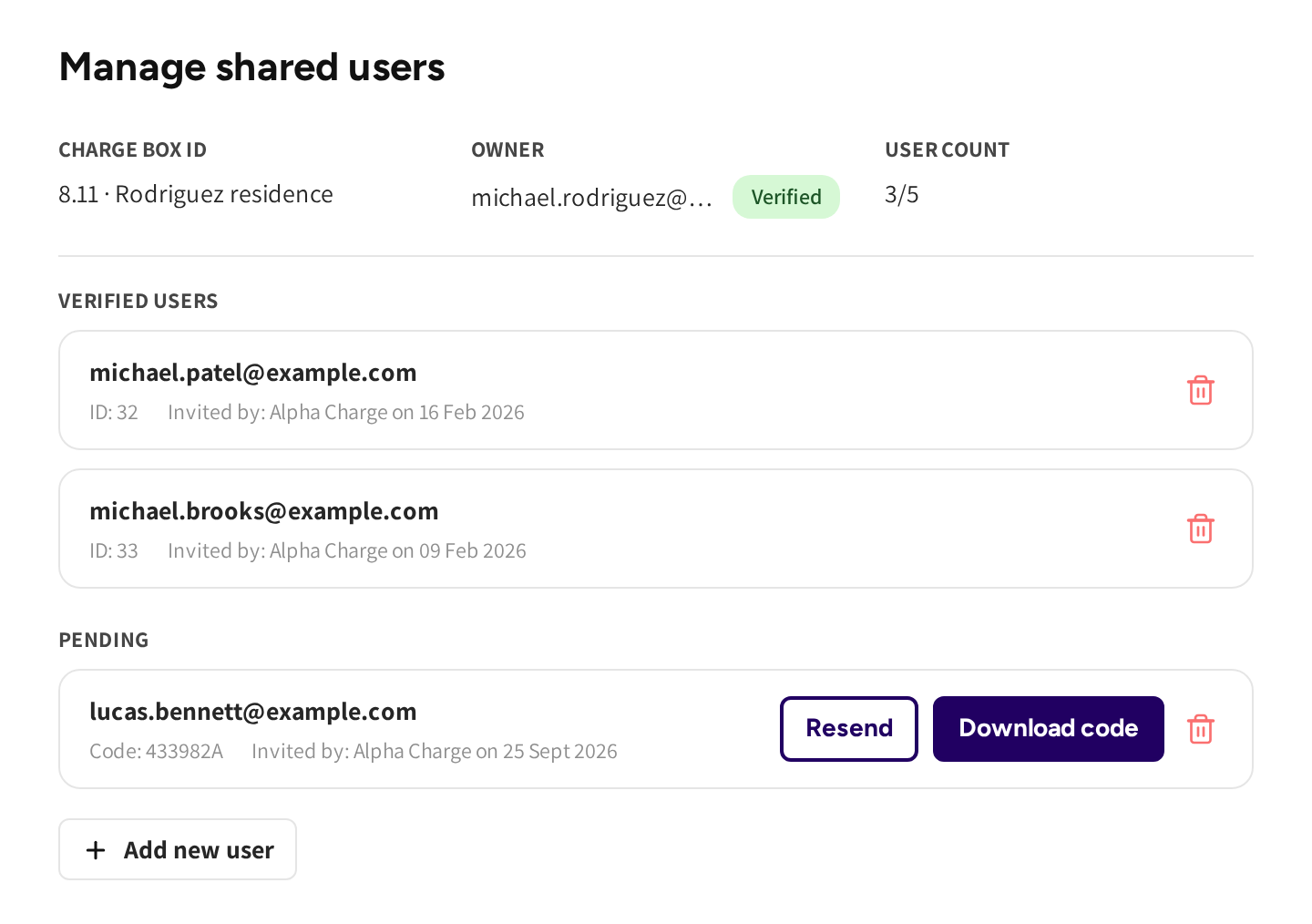
- Charge box id and Owner: the charger, and its owner with their access chip.
- User count: how many of the five places are taken.
- Verified users: people who redeemed their code and can charge, with who invited them and when.
- Pending: invitations not claimed yet, with the code, Resend and Download code.
- Add new user: invite someone else.
Open the window
- Go to Charge points and open Home chargers, Private chargers or Hybrid chargers.
- Open the menu at the end of the charger's row.
- Click Manage shared users.
Changes take effect at once, and Close closes the window. The owner shows read only here; you change an owner in the charger's own form.
The owner's chip reads Verified, No owner yet or Code expired. In Verified users, Owner after "Invited by" means the owner invited that person from the app.
Invite someone by email
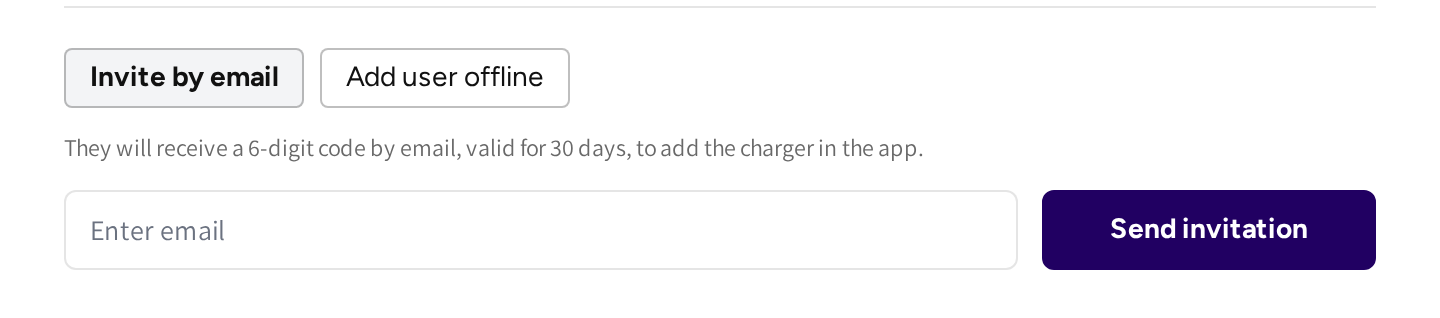
- Click Add new user.
- Leave the choice on Invite by email.
- Enter the person's email address.
- Click Send invitation.
The person gets a code by email, valid for 30 days. They add the charger in the app with that code and sit under Pending until they do.
You can invite people before the owner has claimed the charger. They can charge as soon as they redeem their own code.
Add someone offline
- Click Add new user.
- Click Add user offline.
- Click Create code.
The code is valid for 30 days. Click Download code on the pending row to get it as a printable sheet.
Resend or renew a code
Click Resend on a pending row to send the invitation email again. After 30 days the button reads New code and sends a fresh code instead. A code that was redeemed cannot be used again, so a person who lost access needs a new invitation.
Revoke access
Click the bin icon on the person's row, Revoke access. The charger disappears from their app and they cannot start a session on it.
- If the person is charging right now, then you cannot revoke them until the session ends.
- You cannot revoke the owner here. Change the owner in the charger's own form.
Chargers with a section per plug
If a charger's plugs have owners of their own, then the window shows a section per plug, Plug 1, Plug 2 and so on.
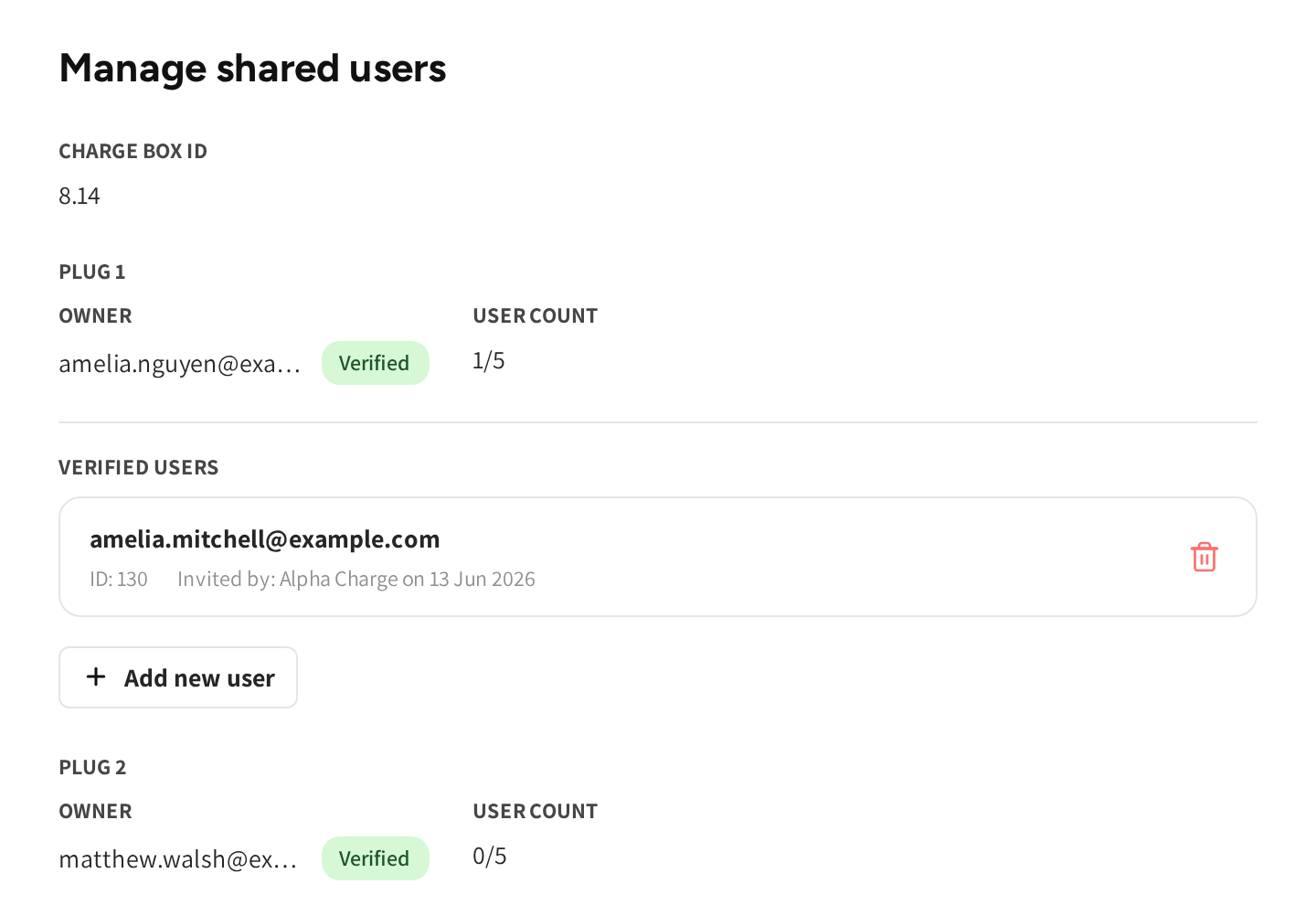
Each section has its own owner, its own list and its own five places. An invitation you send from a section gives access to that plug only. See Plug owners.
The five person limit
Each section holds at most five shared users, and pending invitations take a place too. When a section is full, the window says so. Revoke a shared user to free a place.
Common questions
Where is Manage shared users? In the menu at the end of the charger's row, on the Home chargers, Private chargers and Hybrid chargers tabs.
Can I add a shared user to a charger nobody has claimed yet? Yes. The owner's invitation and the shared users' invitations are separate. An installer can hand out access on the day of installation.
Why can I not revoke this person? They are charging on the charger right now. You can revoke them once the session ends.
Someone I did not invite is in the list. Where did they come from? The owner invited them from the app. Their row shows Owner where an admin's name would be.
Does the owner see what I do here? Yes. It is one shared list. The people you invite appear in the owner's app, and the owner can revoke them.
Updated 24 days ago