
Fleet Wallet
Bill a customer company in advance: put it on prepaid billing, top up its balance, read every movement, and know what happens when the money runs out.
A customer company on Prepaid billing keeps a balance with you, its Fleet Wallet. Every session its charge keys start is paid from it, and you and its fleet manager both top it up.
At a glance
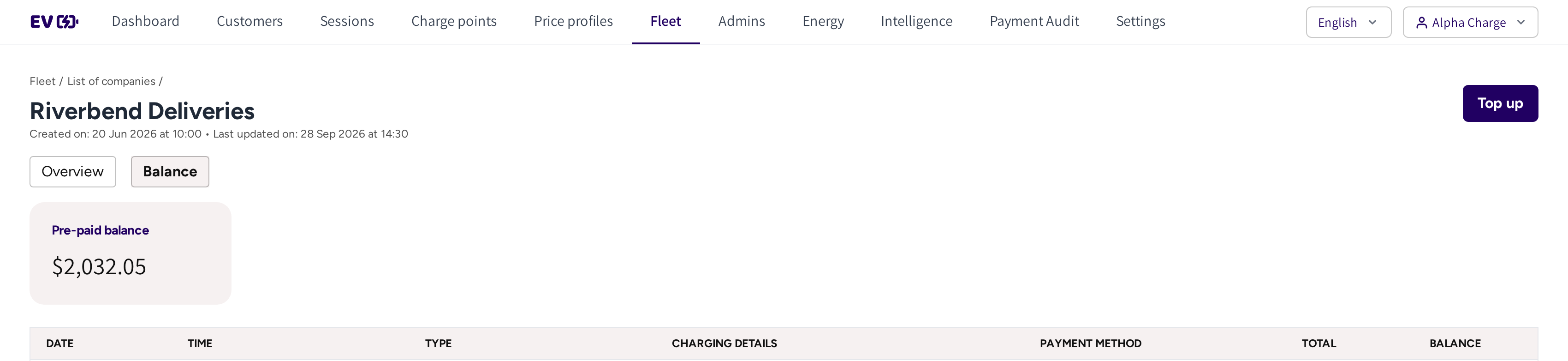
- The path back to List of companies, and the company's name.
- Overview and Balance: the tabs of the company's page.
- Pre-paid balance: what the company can spend right now.
- Top up: add money to the balance.
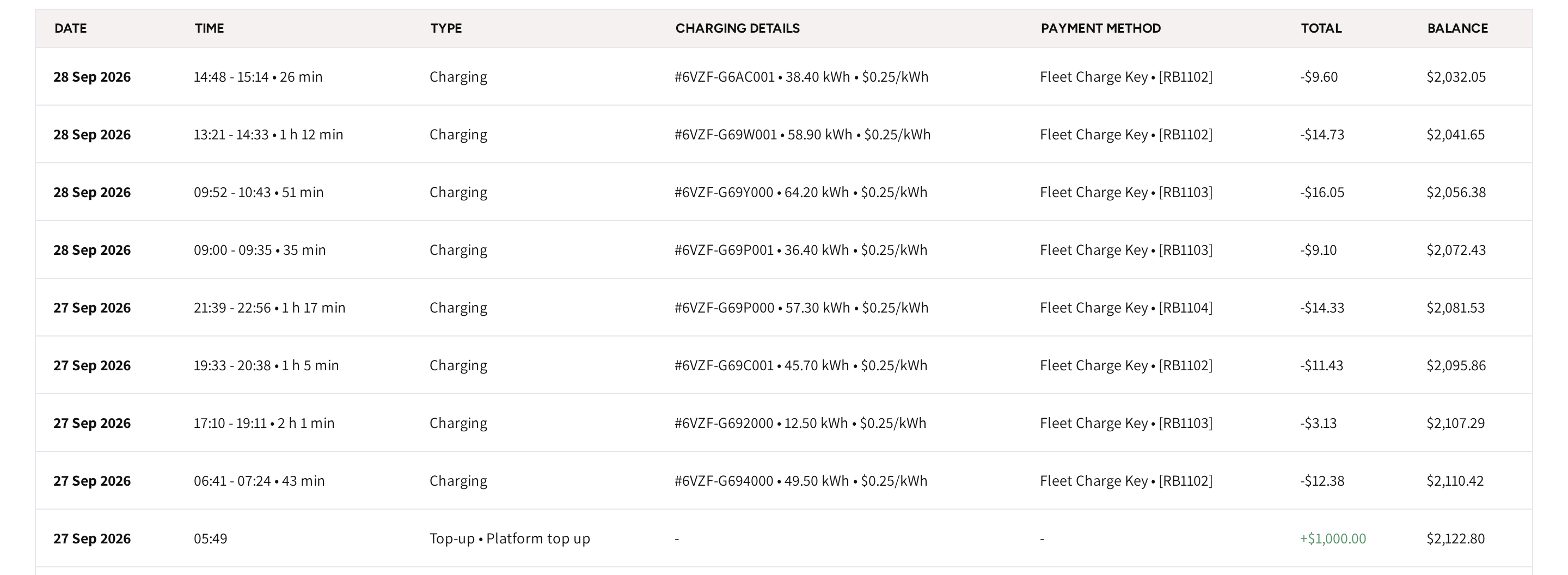
- Date and Time: when the movement happened, or the charging period of a session.
- Type: what kind of movement it was, see the table below.
- Charging details: the session, its energy and its price.
- Payment method: the charge key of the session, or the card of a card top up.
- Total and Balance: the amount, top ups in green, and what was left after it.
Put a company on prepaid billing
- Go to Fleet → External → List of companies and open the company.
- Click Edit on Overview.
- Under Billing options, pick Prepaid.
- Click Save.
The Balance tab then appears, and the company's drivers can charge as soon as it holds money. Switching back to Offline shows a warning first. The balance is kept for when the company is prepaid again.

In List of companies, the Settings column shows each company's billing. Hover the information icon next to a prepaid badge to see its Pre-paid balance without opening the company.
Top a company up
- Open the company and go to Balance.
- Click Top up.
- Enter the Amount and click Save.
The balance rises at once, and the history shows Top-up • Platform top up. No card is charged: settle the payment with the company your own way.
Read the history
| Type | What it means for you |
|---|---|
| Top-up • Platform top up | You added money from the dashboard. |
| Top-up | The company's fleet manager topped up with a card. |
| Authorization | An amount held for a session that is still running. |
| Charging | A finished session, at its real cost. |
| Charging • Outstanding session balance | The part of a session that cost more than the amount held for it. |
| Refund | Money returned to the balance. |
Once a session ends, its hold drops out of the list, so the list shows what was really spent. Pre-paid balance already takes the running sessions' holds off.
How a session uses the balance
- When a driver starts with one of the company's Charge keys, an amount is held from the balance.
- When the session ends, its real cost is taken, and the rest of the hold is released.
- If the session cost more than the hold, then the difference is taken from the balance as well.
If the balance cannot cover a hold, then the session does not start, at the charger and in the app alike. The driver gets a phone notification when an amount is held and when the rest is released.
When the balance runs out
- The company's keys stop starting sessions and show as inactive in the app.
- The company and its fleet managers get an email with a link to top up. It goes out at most about once an hour.
- As soon as the balance is topped up, by you or by the fleet manager, the keys work again.
What the fleet manager can do
The company's fleet manager has the same Balance tab, for their company only. They top up with Top up and a saved card or Add new card. The history then shows Top-up with the card.
Their balance also shows on their dashboard, see Fleet Manager dashboard.
Common questions
How do I put a customer on prepaid billing? Open the company, click Edit on Overview, pick Prepaid under Billing options and click Save. The Balance tab appears at once.
Why is the balance lower than the top ups minus the finished sessions? Running sessions hold an amount until they end. The balance shown is what can be spent right now.
A customer's drivers cannot charge. What do I check? Open the company's Balance. If it is used up, then all its keys are stopped until someone tops up.
Does a top up from the dashboard charge the company's card? No. It adds the amount directly; you settle the payment with the company yourself.
What happens to the balance if I switch the company to offline? It stays untouched while the company is on Offline billing. The company can use it again once it is prepaid again.
Updated about 1 month ago